
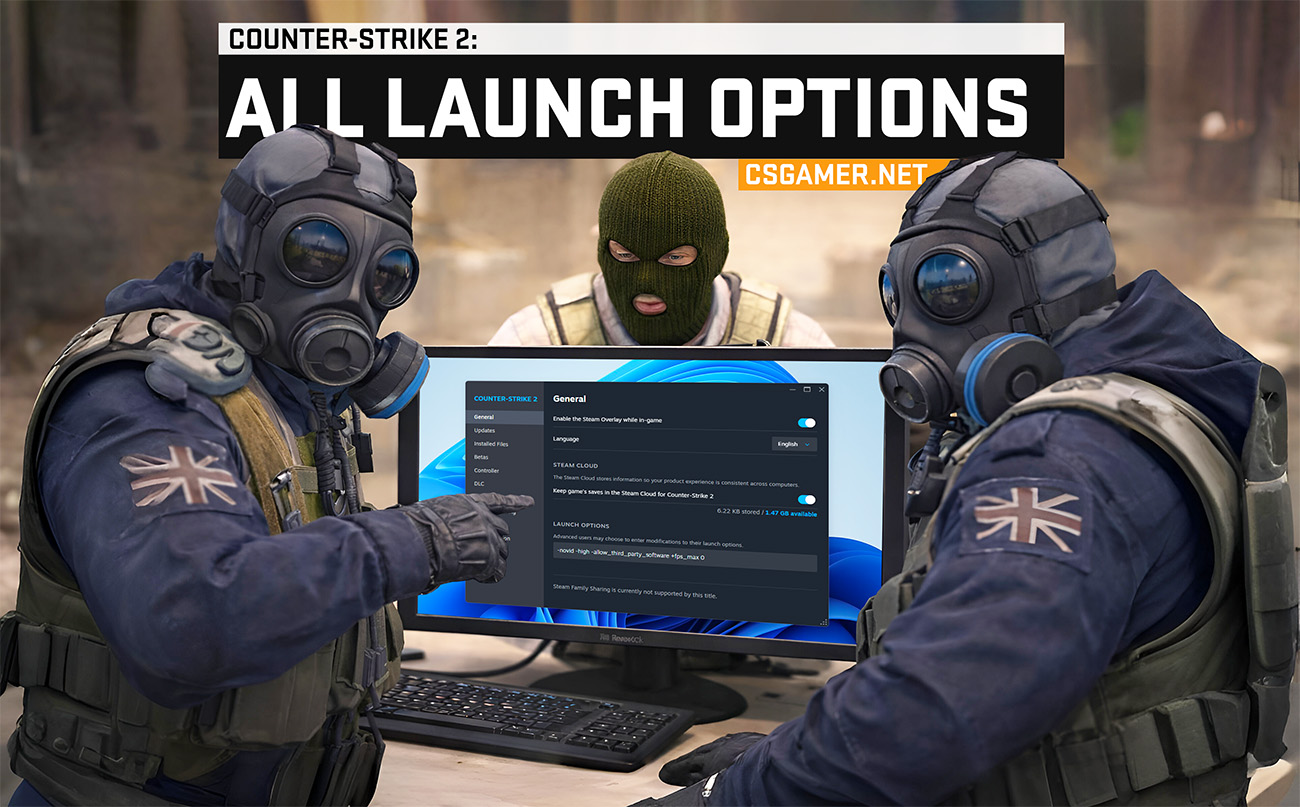
Counter-Strike 2 (CS2) launch options are special commands that you write in the Steam client before starting the game. They have the highest priority and allow you to configure Counter-Strike 2 (CS2), optimize performance, and improve gameplay convenience even before the main menu loads. Correctly chosen options can be the key to stable high FPS and comfortable gameplay, especially on not very powerful computers.
In this complete guide, we have collected all relevant launch options for CS2, divided them into categories for your convenience, and added examples from leading esports athletes.

Where to Enter CS2 Launch Options
Any user can configure Counter-Strike 2 (CS2) launch options in the Steam client. Here is a simple step-by-step instruction:
- Open the Steam client and go to the “Library” section.
- In the list of games, find Counter-Strike 2, right-click on it, and select “Properties”.
- In the window that opens, go to the “General” tab.
- At the bottom of the page, find the “Launch Options” field.
- Enter the commands you need. Multiple parameters are separated by a space, for example:
-novid -high -nojoy +fps_max 0
- Close the window. The changes will take effect after restarting the game.
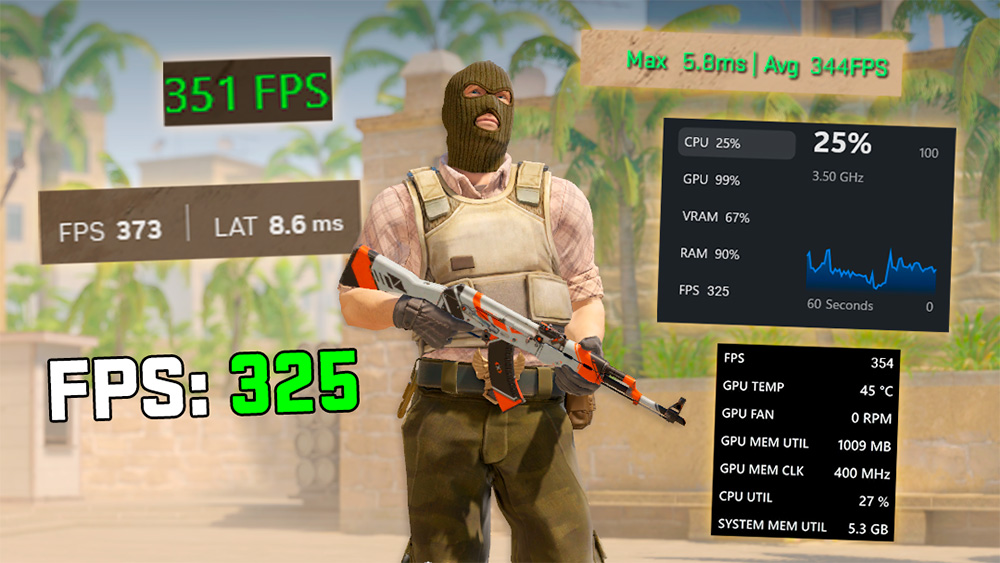
CS2 Launch Options for Increasing FPS and Optimization
This section contains key CS2 launch options for performance and stability optimization. They help increase average FPS, reduce stutters, and make gameplay smoother when starting the game.
-high– Launches CS2 with high priority in Windows Task Manager. This forces the system to allocate more CPU and RAM resources to the game at the expense of background processes, which can improve performance, especially on weak systems.-nojoy– Disables built-in gamepad (controller) support. This can slightly reduce RAM usage and eliminate possible input conflicts if you play exclusively with keyboard and mouse.+fps_max 0– Removes the in-game frame rate limit (FPS), allowing maximum performance. If you need to cap FPS (for stability or resource saving), specify a value:+fps_max 200sets a 200 frames per second limit.+mat_queue_mode 2– Enables multi-core processing, allowing the game to use modern CPU resources more efficiently.+violence_hblood 0– Disables blood effects in the game.+r_dynamic 0– Disables dynamic lighting (e.g., from flashes, gunshots, or fire). This reduces visual detail but can significantly improve performance by decreasing GPU load.+r_drawparticles 0– Disables particle effects (gun smoke, sparks, debris). This noticeably simplifies graphics but can significantly improve performance (FPS), especially in effect-heavy scenes.+mat_disable_fancy– Disables complex texture blending. This simplifies surface rendering, making them visually less detailed and volumetric, but can noticeably improve performance (FPS), especially on complex maps._blending 1 +cl_forcepreload 1– Performs preloading of game files before the match starts to reduce system load and improve gameplay smoothness after connecting.+engine_low_latency– Helps stabilize frame rate (FPS) and reduce latency, but its effectiveness depends on system configuration and current load._sleep_after_ client_tick -softparticlesdefaultoff– Removes small particles and decorative objects on the map (dust, debris, leaves). This simplifies visuals and reduces load, which can improve performance (FPS).-forcenovsyncor-nosync– Disables Vertical Synchronization (VSync). VSync eliminates screen tearing but can cause increased input lag and performance drops. Disabling is recommended for competitive play.-vulkan– Switches the game’s graphics API to Vulkan (instead of DirectX 11). May increase performance (FPS) on compatible hardware, but results vary. Recommended for testing on systems with AMD graphics cards.-nohltv– Disables client-side functions related to GOTV (Source TV). This may slightly reduce CPU and network load, freeing up resources for the game.
Basic CS2 Launch Option Settings
Basic Counter-Strike 2 (CS2) launch options. These commands set the basic game settings even before it starts.
-console– Allows you to activate the developer console when the game starts. This feature is initially hidden for new players.-language– Allows you to change the CS2 interface language directly via launch options, without changing language or region in the Steam client. For example:-language russian(Russian),-language english(English) and others. A total of 28 languages are available.+exec– Allows you to automatically execute (load) a custom configuration file (config) at game launch. For example,+exec myconfig.cfgwill load yourmyconfig.cfgfile, which must be located in the CS2 files folder.-allow_third_– Allows recording and streaming software (e.g., OBS, ShadowPlay). This parameter is especially important for streamers, but its use may negatively affect your Trust Factor and consequently the quality of matchmaking.party_software -autoconfig– Resets all CS2 settings to default values. ATTENTION: This will result in the irreversible loss of all your custom settings (graphics, controls, sound, etc.).+cl_showfps X– Enables the in-game FPS counter. 5 different display modes are available. To choose, use+cl_showfps X, where X is a number from1to5(e.g.,+cl_showfps 3enables the third counter type).
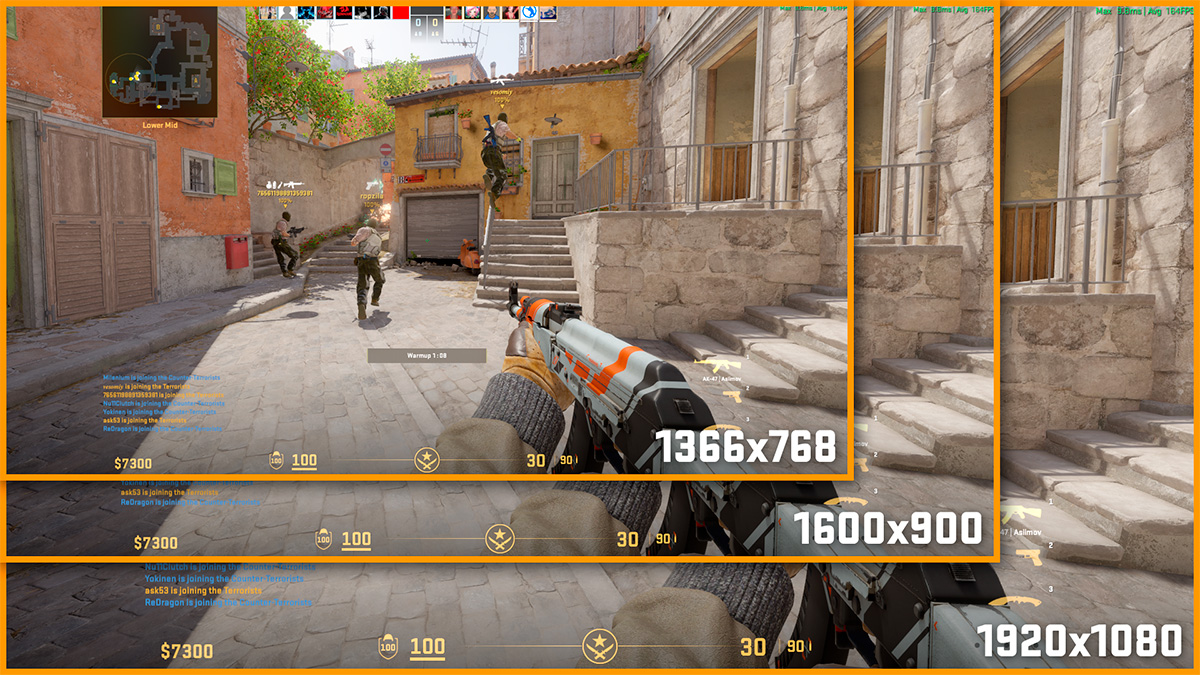
Changing Screen Resolution via CS2 Launch Options
Using launch options, you can flexibly configure the screen resolution and display mode of CS2. This allows you to forcibly set specific values, ignoring system settings, which is useful for non-standard monitors or solving image output problems.
-fullscreenor-full– Launches the game in fullscreen mode. Unlike windowed, this mode usually provides maximum performance and minimum input lag, as the game gets exclusive access to the graphics card.-windowedor-window– Launches the game in windowed mode. Mainly intended for streaming, gameplay recording, simultaneous work with other applications, or debugging.-noborder– Launches the game in borderless fullscreen windowed mode.-w X -h X– Allows you to set a non-standard or missing in the game menu screen resolution via launch options. Example for Full HD:-w 1920 -h 1080-x X -y X– Sets the window position on the desktop when using windowed mode along X and Y axes. Example:-x 100 -y 200positions the window 100 pixels from the left edge and 200 pixels from the top edge of the screen.-refresh X– Forces a target refresh rate (in Hz) for the game. For example, for a 144 Hz monitor use-refresh 144. Important: Set a value not exceeding your monitor’s maximum supported refresh rate, otherwise it may result in no image.
Additional CS2 Launch Options
This section contains specialized and rarely used CS2 launch options. Use them only if you have a specific need.
-insecure– Deactivates VAC (Valve Anti-Cheat). WARNING: Using on official Valve servers will result in an immediate permanent ban (VAC Ban). This parameter is intended exclusively for certain third-party platforms that use their own anti-cheat instead of VAC.-low– Launches CS2 with low process priority in the system. This is the opposite of-highand is used in rare cases when you need to allocate more CPU resources to other programs (e.g., streaming, recording, or rendering on the same PC), which may reduce game performance.-dxlevel XX– Forces a specific DirectX version for rendering in the game (e.g.,-dxlevel 90for DirectX 9.0). Use for diagnosing and solving graphics, compatibility, or performance issues on older hardware.-soft– Launches the game in software rendering mode. An extreme measure for very old systems without graphics card support.+fps_max_ui– Sets a separate frame rate limit (FPS) for the main menu, lobby, and other non-game screens. This allows reducing GPU and overall system load when maximum performance is not needed.-nopreload– Disables preloading (models, textures) before the match starts. Not recommended for normal gameplay due to severe stuttering when encountering new objects.
Launch Options from CS:GO That Stopped Working in CS2
With the transition to the Source 2 engine, many popular launch options from CS:GO were disabled or completely reworked. Their use in Counter-Strike 2 (CS2) is pointless, and in some cases may lead to unpredictable game behavior, errors, or conflicts with new systems. It is recommended to remove all old launch options from the settings and use only current commands.
-novid– In CS:GO, this parameter disabled the intro video. In CS2, there is no intro video, so it has lost its main function and does not skip the Counter-Strike 2 splash screen.-tickrate 128– In CS:GO, this parameter requested tickrate change (game world update frequency) on the server side, if allowed. In CS2, it lost this network influence and now sets tickrate only for local (offline) and community servers, not affecting official online matches.-threads x– In CS:GO, this parameter allowed manually specifying the number of CPU threads for the game to use. In CS2, multi-threading optimization has been reworked, and the game now automatically determines and uses the optimal number of threads, making manual setting unnecessary.-limitvsconst– In CS:GO, this parameter limited vertex shader complexity, simplifying object geometry to improve FPS on weak or old graphics cards. In CS2 (Source 2 engine), the shader system has been completely reworked, and this parameter no longer functions – detail level is now managed automatically and via standard graphics settings.+cl_cmdrate 128or+cl_updaterate 128– These network parameters in CS2 are primarily managed by the server hosting the match. Manual client-side changes are often ignored.-d3d9ex– Previously activated Direct3D 9Ex mode to reduce CPU load and enable fast Alt+Tab. In CS2 with its new engine and API (DX11/Vulkan), this feature is not used and has no effect.-nod3d9ex1or-disable_d3d9ex– Disables Direct3D 9Ex mode (the opposite of-d3d9ex). In CS2, where this technology is not used, the parameter has no practical meaning.-no-browser– Previously disabled built-in browsers and Steam Community web components in the game. In CS2, where the interface is built differently, the parameter does not work.-noaafonts– Previously disabled font anti-aliasing in the interface for a potential FPS increase. In CS2, this setting is obsolete and does not affect font rendering.-freq x– In older versions of the game or Source engine,-freqwas used to force a monitor refresh rate. In CS2, this parameter does not work – use the current command-refresh.

CS2 Launch Options for Weak PCs
Low FPS in CS2? Use these launch options to optimize the game for your computer’s capabilities. Choose settings for your configuration and add them to Steam.
- For Weak PCs
-high -nojoy +fps_max 100 +violence_hblood 0 +r_dynamic 0 -softparticlesdefaultoff +engine_low_latency_sleep_after_client_tick +mat_queue_mode 2 -fullscreen
Removes effects and small particles, maximum 100 FPS for stability, activates parameters for stability.
- For Medium PCs
-high -nojoy +fps_max 150 -softparticlesdefaultoff +engine_low_latency_sleep_after_client_tick +mat_queue_mode 2
Returns in-game effects, maximum now 150 FPS and retains some optimization.
- For Powerful PCs
-high -nojoy +fps_max 0 +engine_low_latency_sleep_after_client_tick
It’s enough to keep high performance priority, remove the FPS limit, and keep the stability parameter.
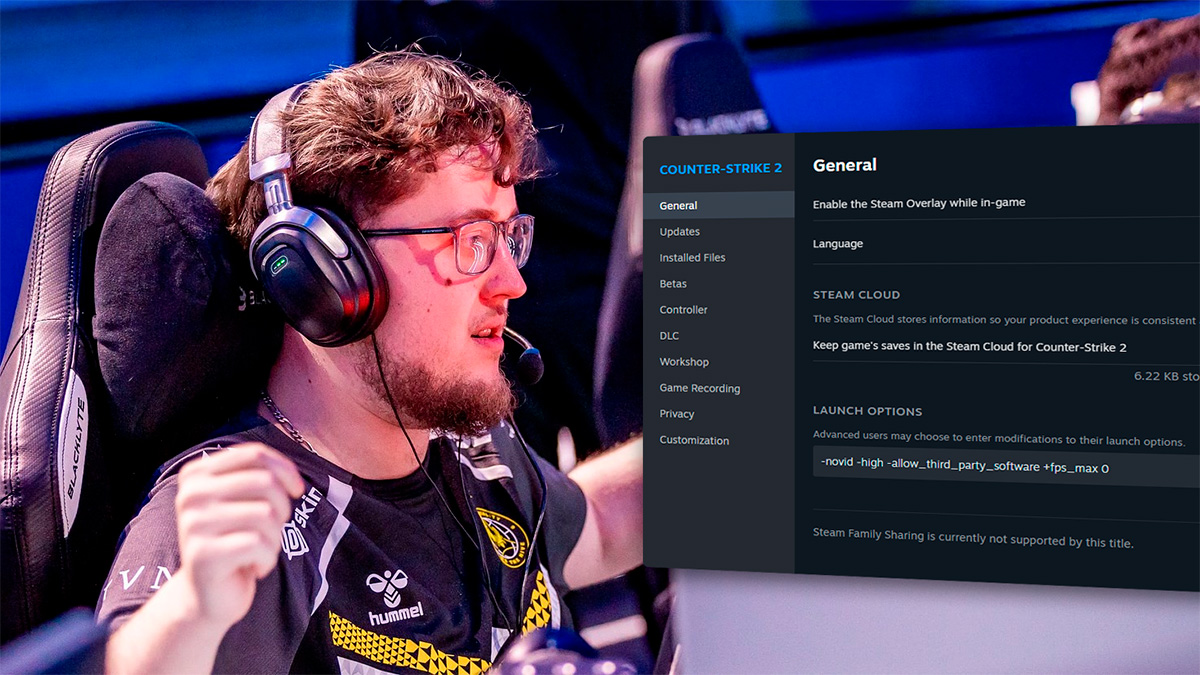
CS2 Launch Options from Esports Athletes
Data on launch options of professional players presented in the public space is often inaccurate, outdated, or based on rumors. However, it is reliably known that they generally use a minimal and practical set of commands, focusing on stability and low input lag.
Donk’s Launch Options
-novid -high +fps_max 0 -fullscreen -nojoy
m0NESY’s Launch Options
-novid -high +fps_max 0 -nojoy -fullscreen
s1mple’s Launch Options
-novid -high -console -fullscreen +fps_max 999
ZywOo’s Launch Options
-novid -high -allow_third_party_software +fps_max 0
NiKo’s Launch Options
-novid -console -language english +fps_max 0
Frequently Asked Questions (FAQ) on CS2 Launch Options
Can I get a VAC ban for launch options?
-insecure) are safe.How many CS2 launch options can I use?
How to set resolution 1920×1080 or 4:3 via launch options?
-w and -h. For 1920×1080: -w 1920 -h 1080. For stretched 4:3 (1280×960): -w 1280 -h 960. The aspect ratio also needs to be selected in the in-game video settings.How to completely reset launch options?
Where to find more commands for configuration?
+exec myconfig.cfg), not launch options.Conclusion
CS2 launch options are a convenient tool for fine-tuning the game. They do not replace proper graphics and system settings, but help remove unnecessary things, speed up launch, and make gameplay more comfortable.
Use a minimal and verified set, do not add outdated commands, and regularly check the relevance of parameters after Counter‑Strike 2 updates.

We have prepared a large list of websites where you can get bonuses such as free cases, skins, or promo codes when topping up.

We compared the price of one skin on various trading platforms to help you choose the most suitable one.

We analyzed case opening sites and compiled a ranking, evaluating them from best to worst based on the quality and profitability of skin drops.




the weak pc launch codes actually worked, Thanks!