What Is the NUMPAD and Why Use It in CS2
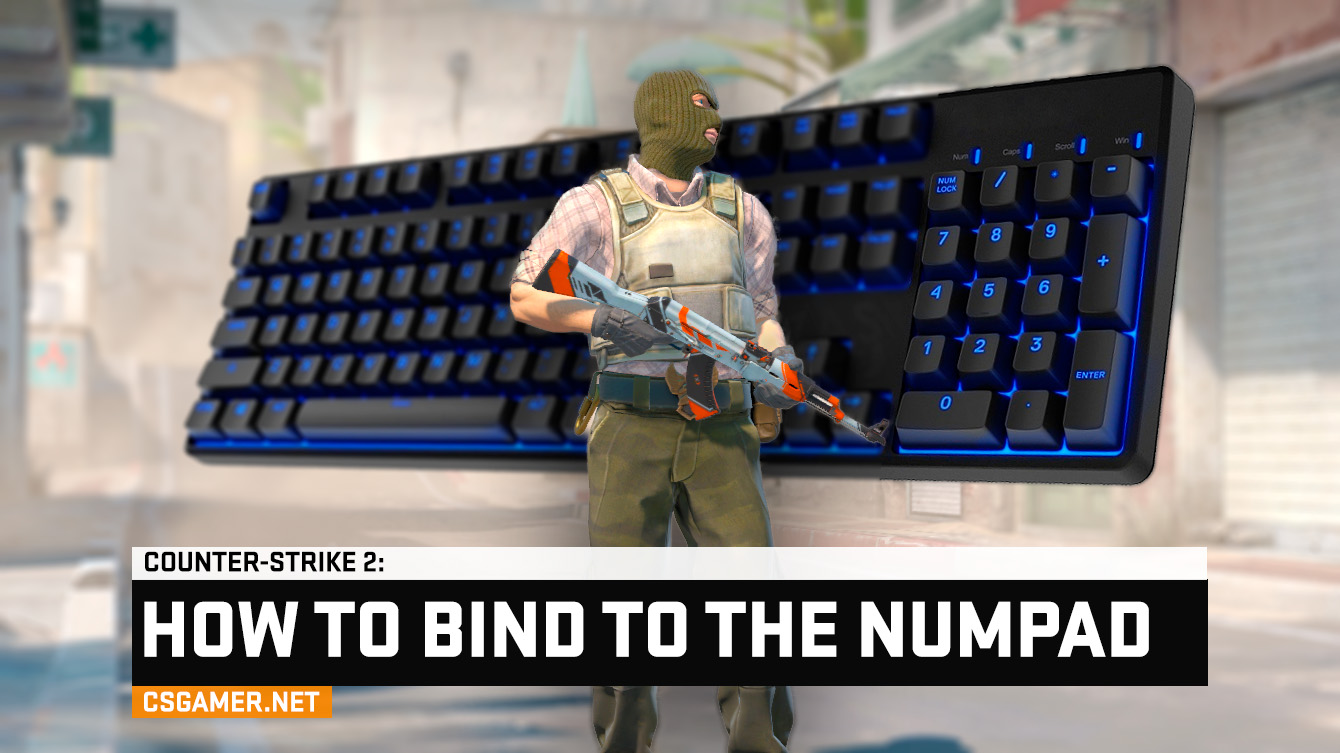
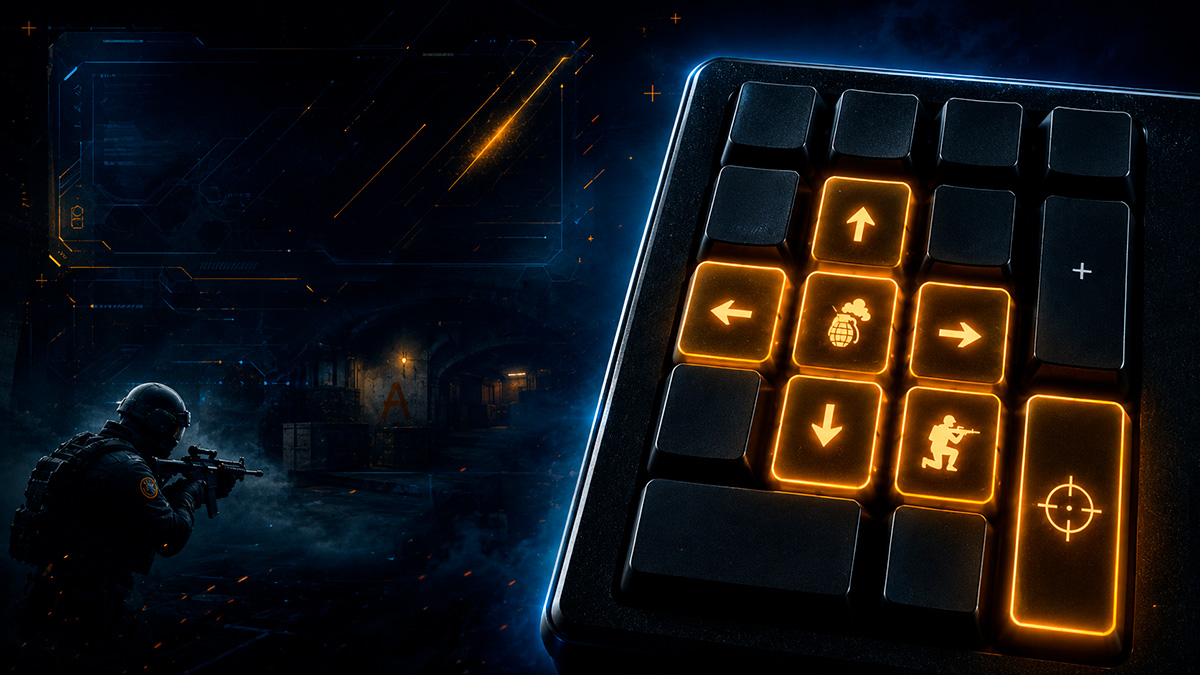
NUMPAD is the block of numeric keys located on the right side of a full-size keyboard. In Counter-Strike 2 (CS2), these keys are not assigned by default, so you can freely use them for binds – mapping console commands to keys. This frees up your primary buttons and gives you quick access to useful actions without distracting you from the game.
How to Bind NUMPAD Keys in CS2
To assign a command to a NUMPAD key, open the console and enter the bind command in the correct format. Follow this step-by-step guide:
- Launch Counter-Strike 2.
- Open the console by pressing the ` (grave) or ~ (tilde) key.
- Enter the command in this format:
bind "key" "action or console command" - Press Enter – the bind takes effect immediately.
You can create binds both in the main menu and right during a match.
Which Commands to Use for NUMPAD Binds
Below is a table showing the NUMPAD keys and their corresponding names in the CS2 console. Use these names in your bind command.
kp_slashkp_multiplykp_minuskp_7kp_8kp_9kp_pluskp_4kp_5kp_6kp_1kp_2kp_3kp_enterkp_0kp_delExamples of Commands for NUMPAD Binds
Below is a list of ready-to-use binds that you can copy and paste into the console. They are divided by category so you can quickly find the action you need.
Core Gameplay Commands
bind "kp_0" +jump– bind jump to the 0 key.bind "kp_5" noclip– toggle flight mode on the 5 key.bind "kp_enter" switchhands– switch viewmodel hand (right/left) on the Enter key.
Text Binds for Chat
Quickly sending messages to chat helps coordinate team actions, especially if you don’t have a microphone.
bind "kp_7" "say_team Rush A!"– send “Rush A!” to team chat.bind "kp_8" "say_team Going to B!"– send “Going to B!” to team chat.bind "kp_9" "say_team Eco round"– announce an eco round.bind "kp_plus" "say_team Defending A!"– signal to defend site A.
Voice Chat Control
Instantly muting voice chat helps you focus during critical moments.
bind "kp_minus" "toggle voice_modenable true false"– toggle voice chat on/off with the – key.
Quick Bomb Drop
This bind lets you drop the bomb with one press, which is crucial in high-pressure situations.
alias "+fastbomb" "slot5; drop"; alias "-fastbomb" "slot2; slot1"; bind "kp_4" +fastbomb– drop the bomb on the 4 key.
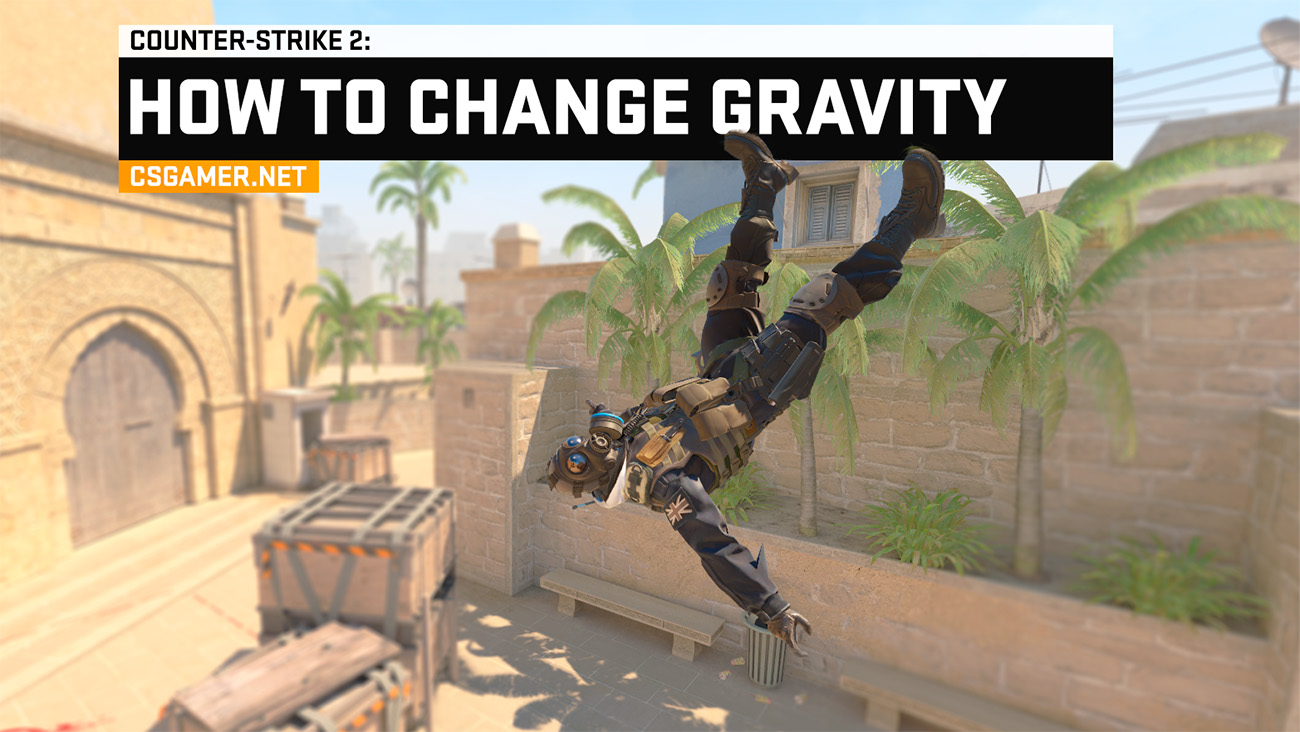
Changing Gravity (for Training and Fun)
These commands only work on servers where cheats are enabled (sv_cheats 1). For a detailed guide on adjusting gravity for different purposes, read our article How to Change Gravity in CS2 via Console.
bind "kp_1" "sv_gravity 0"– disable gravity on the 1 key.bind "kp_2" "sv_gravity 200"– enable low gravity (high jumps) on the 2 key.bind "kp_3" "sv_gravity 800"– set standard gravity on the 3 key.
How to Remove a Bind from a NUMPAD Key
If you no longer need a bound command, you can remove it using the unbind command. Here is how:
- Open the console (` or ~).
- Enter the command:
unbind "key"For example:unbind "kp_0"– will remove all actions from the 0 key. - Press Enter. The bind will be removed.
You can also simply rebind the key with a new bind command – the old binding will be overwritten automatically.
Frequently Asked Questions (FAQ)
Do I need to enable NumLock for NUMPAD binds to work?
Why do my binds reset after restarting CS2?
autoexec.cfg) and add all your commands there.Can I bind multiple commands to a single NUMPAD key?
alias command to chain multiple actions together and bind them to one key. For more details, check our guides on creating advanced binds.Do NUMPAD binds work in official matches?
sv_cheats 1) work on official Valve servers. They do not violate the rules or give any unfair advantage.Conclusion
Now you know how to bind the NUMPAD in CS2 and which console commands to use for it. The number pad is a convenient way to expand your controls without taking up primary keys. Experiment with different commands, create your own binds, and make your gameplay more comfortable.
If you want to learn more about binds and console commands, check out other sections of our site dedicated to CS2. Good luck and have fun!

We have prepared a large list of websites where you can get bonuses such as free cases, skins, or promo codes when topping up.

We compared the price of one skin on various trading platforms to help you choose the most suitable one.

We analyzed case opening sites and compiled a ranking, evaluating them from best to worst based on the quality and profitability of skin drops.