
The desire to change the language in Counter-Strike 2 (CS2) can arise for various reasons: someone bought an account with an unfamiliar interface language, someone wants to immerse themselves in a language environment for practice, or someone’s settings were reset after an update. Fortunately, changing the localization in the game is quite simple. In this detailed guide, we will cover three working methods for changing the language, explain what to do if the settings do not apply, and answer players’ frequently asked questions.
Method 1: Changing the Language via Game Properties in Steam
This is the primary and simplest method, which even a beginner can handle. It does not require memorizing commands and is done directly in the Steam client.
Step-by-Step Instructions:
- Launch the Steam client and go to the “Library” section.

- In your list of games, find Counter-Strike 2, and Right-Click on the name.
- In the context menu that appears, select the very bottom item – “Properties”.

- A new window will open. In the left menu, make sure the “General” section is selected (it is open by default).
- In the main area of the window, find the dropdown menu labeled “Language”.

- Click on it and select the desired language from the list, for example, “Russian” or “English”.

- Close the properties window. The Steam client will automatically download the necessary language files (if they are not already installed) and apply the settings the next time you launch the game.
If the first method did not work and the language in CS2 did not change, proceed to the next method.
Method 2: Changing the Language via Steam Launch Options
Sometimes the first method may not work – the game continues to launch in the old language. In this case, manual configuration via launch options comes to the rescue. This method is also useful if you want to use a language that is not in the standard list in the Steam client.
Step-by-Step Instructions:
- Repeat steps 1-4 from Method 1 to open the “Properties” window for CS2.
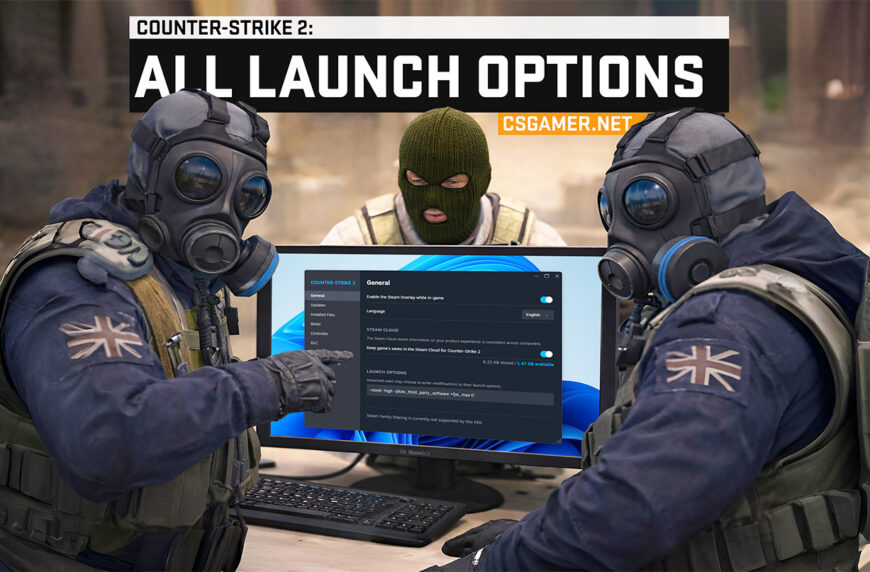
- In the “General” section, find the field named “Launch Options”.

- Enter (or add to the existing ones) one of the following commands in this field:
- For Russian:
-language russian - For English:
-language english - For any other language, specify its code (for example,
ukrainian,german,french, etc.).
- For Russian:
- Close the window and launch Counter-Strike 2. The changes will take effect immediately.
This method works in 99.9% of cases, since the language specified in the “Launch Options” takes priority over the selection in the “Language” dropdown.
Method 3: Combination of Two Methods (100% Result)
If you are facing a persistent problem where the language refuses to change, use this combined approach for a 100% result.
- Go to “Properties” > “Language” in Steam and select the desired language (Method 1).
- In the same window, in “Launch Options”, write the corresponding command, for example,
-language russian(Method 2). - Completely close the game and the Steam client (end the process via Task Manager to be sure).
- Launch Steam and CS2 again.
This sequence of actions solves even the most unusual problems in most cases.
How to Change Language in Steam
In addition to the instructions for changing the language in Counter-Strike 2 (CS2), let’s consider a simple way to change the Steam interface language. Since this method makes changes directly to the profile, the new language is applied to all platforms – both in the desktop client and in the web browser.
Step-by-Step Instructions:
- Launch the Steam client.
- In the upper left corner, find the “Steam” menu and click on it.
- In the dropdown menu, select the “Settings” item.

- In the window that opens, go to the “Interface” section in the left menu.
- In the main area of the window, find the dropdown menu labeled “Steam Client Language”.

- Click on it and select the desired language from the list, for example, “Russian” or “English”.
- Steam will prompt you to restart the client to apply the changes. Confirm the restart.
Important: The language in games launched via Steam is independent of the language of the client itself – these are different settings.
Frequently Asked Questions (FAQ)
The language in Counter-Strike 2 (CS2) does not change, what should I do?
Why after changing the language in CS2 some elements remained in the old one?
Why is the desired language option not in the language list in Steam?
-language belarusian).What languages does Counter-Strike 2 (CS2) support?
-language arabicArabic-language bulgarianBulgarian-language chineseChinese-language czechCzech-language danishDanish-language dutchDutch-language frenchFinnish-language germanGerman-language greekGreek-language hungarianHungarian-language italianItalian-language japaneseJapanese-language koreaKorean-language norwegianNorwegian-language portuguesePortuguese-language brazilianPortuguese (Brazilian)-language romanianRomanian-language schineseSimplified Chinese-language spanishSpanish-language swedishSwedish-language tchineseTraditional Chinese-language thaiThai-language turkishTurkish-language ukrainianUkrainian-language vietnameseVietnamese
Why did my language automatically switch to English?
Do language settings affect performance?
Conclusion
As you can see, the process of changing the language in Counter-Strike 2 is not particularly difficult. You can use the simple method via the Steam menu, the more reliable one via launch options, or the combined method for a guaranteed result.
We hope this guide has helped you set up the game as comfortably as possible. Enjoy the game!

We have prepared a large list of websites where you can get bonuses such as free cases, skins, or promo codes when topping up.

We compared the price of one skin on various trading platforms to help you choose the most suitable one.

We analyzed case opening sites and compiled a ranking, evaluating them from best to worst based on the quality and profitability of skin drops.