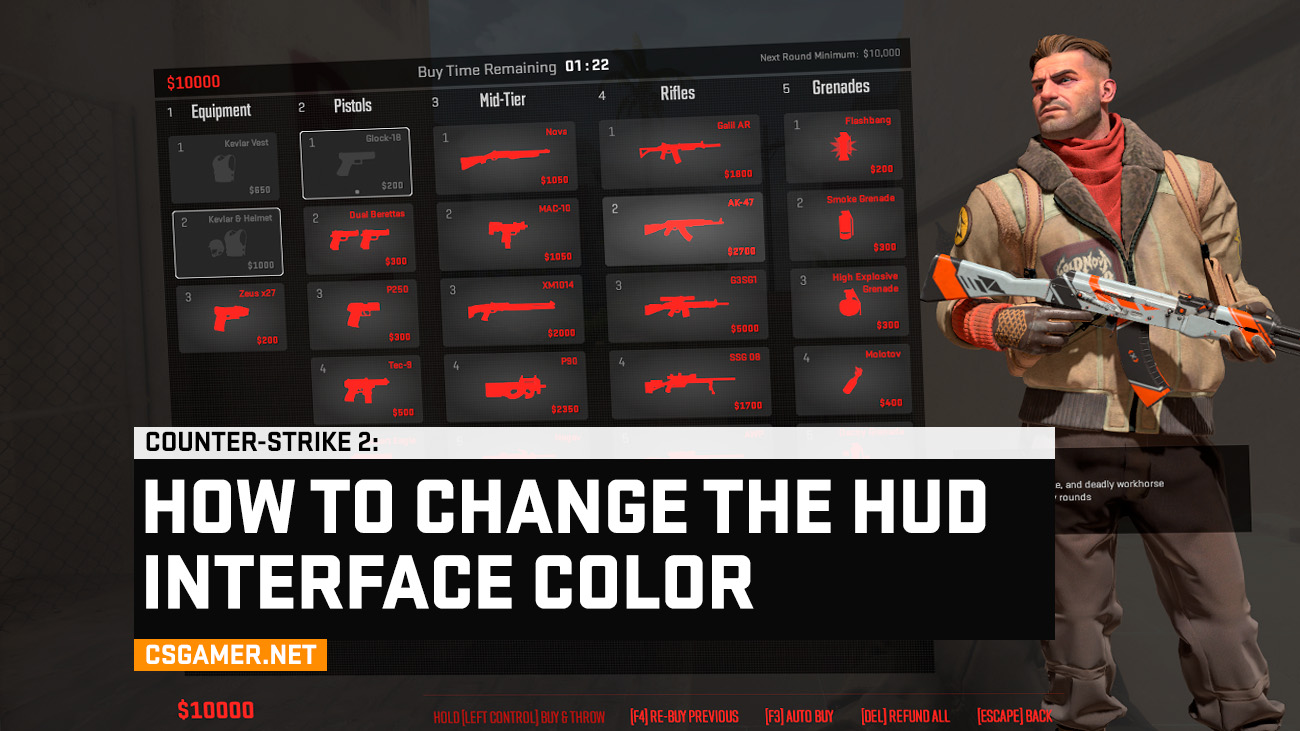
In Counter-Strike 2, players have flexible interface (HUD) customization options, including the choice of color for elements: health, armor, ammo, radar, and the buy menu. A well-chosen HUD color not only improves visual perception but also helps to read information faster during intense rounds.
In this guide, you will learn all the current methods for changing the HUD color in CS2: through the game settings, using console commands, as well as advanced options with binds that allow you to automatically change the interface color when moving, jumping, or performing other actions.
Change HUD Interface Color via CS2 Settings
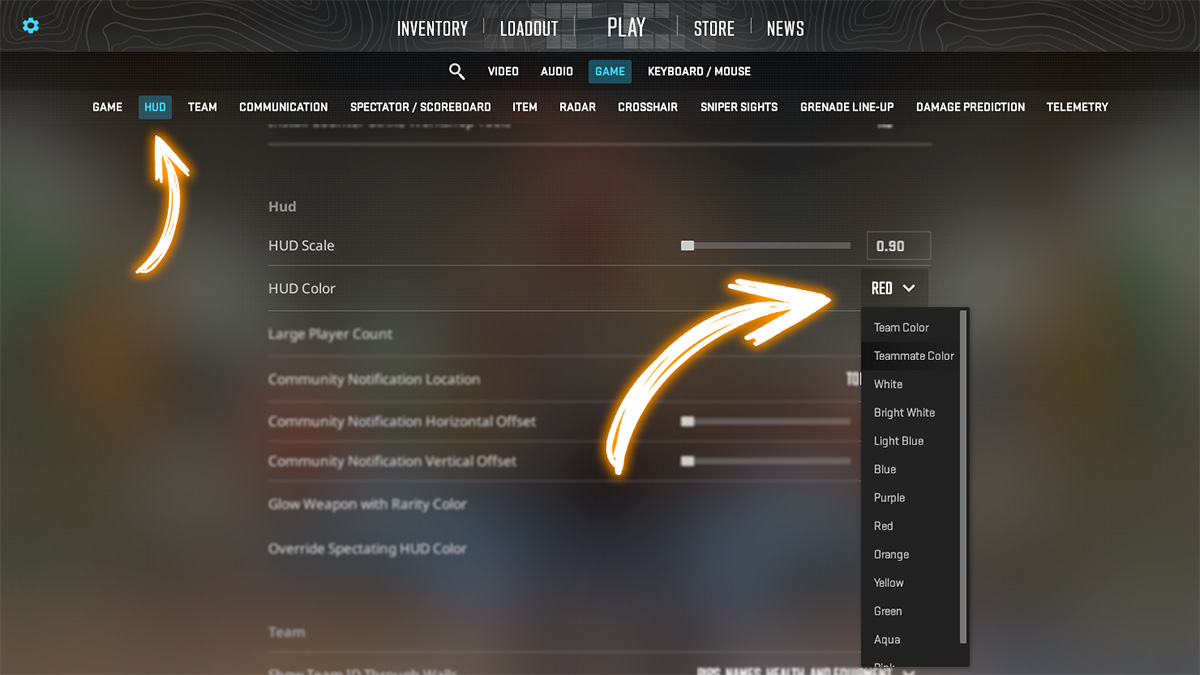
The simplest and safest way is to use the built-in Counter-Strike 2 settings menu. This method is suitable for all players and works in any mode.
- Click on the gear icon in the top left corner of the main menu.
- Go to the “Game” tab → “Interface”.
- Find the “Interface Color” option and select one of the available variants.
Change HUD Interface Color via CS2 Console
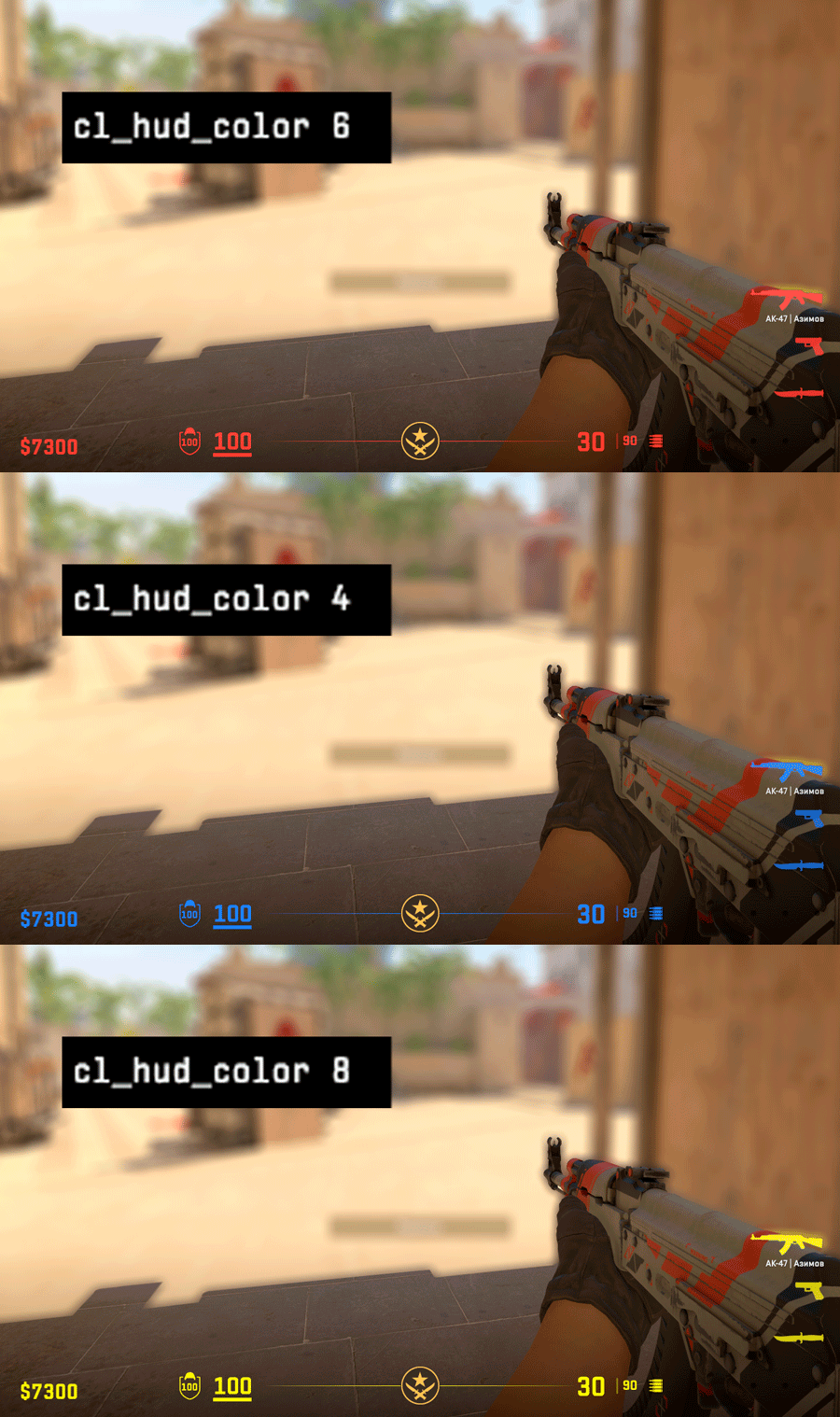
If you prefer more precise customization, you can change the HUD color using the console command cl_hud_color. It works on official servers and does not require sv_cheats to be enabled.
Command format:
cl_hud_color X
Where X is a number from 0 to 12, corresponding to a specific interface color.
| Example | Color | Console Command |
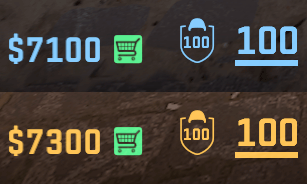 | Team Color – when playing as Counter-Terrorists it’s blue, as Terrorists it’s light orange | cl_hud_color 0 |
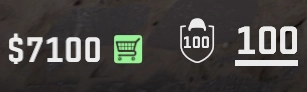 | White – more like gray | cl_hud_color 1 |
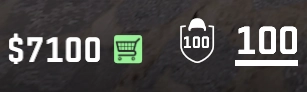 | Snow White – whiter | cl_hud_color 2 |
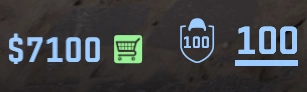 | Light Blue – like Counter-Terrorists, but will be this color when playing as Terrorists too | cl_hud_color 3 |
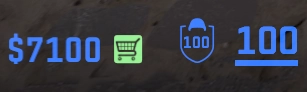 | Blue | cl_hud_color 4 |
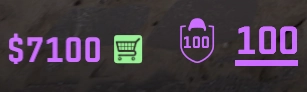 | Purple | cl_hud_color 5 |
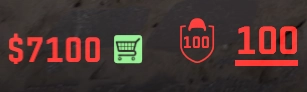 | Red | cl_hud_color 6 |
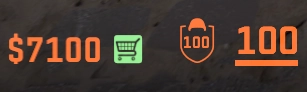 | Orange | cl_hud_color 7 |
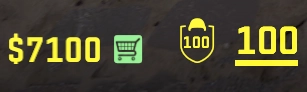 | Yellow | cl_hud_color 8 |
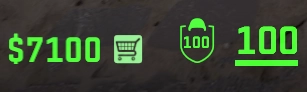 | Green | cl_hud_color 9 |
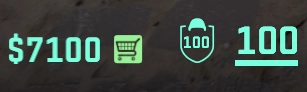 | Aquamarine | cl_hud_color 10 |
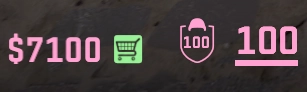 | Pink | cl_hud_color 11 |
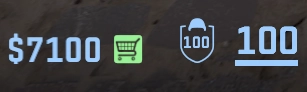 | Player Color – when spectating teammates, the interface will change depending on the color around their avatar. | cl_hud_color 12 |
Switching HUD Colors While Walking – Binds
In Counter-Strike 2 (CS2), you can go even further and bind automatic HUD color changes depending on your actions. For example: every time you press the walk key – the color changes.
Example of a simple, beautiful, and clear bind:
bind "w" "+forward; toggle cl_hud_color 5 6 4 3 2 1 9 8 7 10"
Every time you press to move forward (w) the color will change
You can set HUD color changes for each movement key (enter separately):
bind "w" "+forward; toggle cl_hud_color 5 6 4 3 2 1 9 8 7 10"bind "s" "+back; toggle cl_hud_color 5 6 4 3 2 1 9 8 7 10"bind "a" "+left; toggle cl_hud_color 5 6 4 3 2 1 9 8 7 10"bind "d" "+right; toggle cl_hud_color 5 6 4 3 2 1 9 8 7 10"bind "mouse4" "+duck; toggle cl_hud_color 5 6 4 3 2 1 9 8 7 10"bind "SPACE" "+jump; toggle cl_hud_color 5 6 4 3 2 1 9 8 7 10"bind "MOUSE1" "+attack; toggle cl_hud_color 5 6 4 3 2 1 9 8 7 10"
To remove color switching from keys, enter the following commands (one by one):
bind "w" "+forwardbind "s" "+backbind "a" "+leftbind "d" "+rightbind "mouse4" "+duckbind "SPACE" "+jumpbind "MOUSE1" "+attack
Thus, the interface color will change dynamically, helping you subconsciously orient yourself to the character’s state during the game.

Additional HUD Settings in CS2
If you want to fully customize the interface, we recommend checking out other guides on our website:
- How to change HUD size in CS2
- How to change HUD font
- How to completely disable HUD
- How to remove weapons and hands from the screen
All materials are collected in the CS2 Guides section.
Frequently Asked Questions (FAQ)
How many HUD colors can you choose in CS2 and how to set them up?
cl_hud_color X. You can choose the desired color either through the HUD settings menu or by entering the command in the console, where X is the color number (e.g., cl_hud_color 5 for red).The cl_hud_color command doesn’t work – why?
Is it possible to change only individual HUD elements (e.g., remove the crosshair but leave everything else)?
cl_draw_only_deathnotices 1 hides almost the entire interface, leaving only death notices and the crosshair, while commands like crosshair 0 disable only the crosshair.Do HUD settings reset after restarting CS2?
cl_hud_color, hud_scaling) to your autoexec.cfg, which runs when CS2 launches. This will help preserve the HUD color and other settings between sessions.Can you make a “rainbow” or automatically changing HUD color?
Conclusion
Customizing the HUD color in Counter-Strike 2 is a simple but effective way to make the game more comfortable and informative.
Use standard settings, console commands, or advanced binds to adapt the interface to your playstyle and gain maximum control in every round.

We have prepared a large list of websites where you can get bonuses such as free cases, skins, or promo codes when topping up.

We compared the price of one skin on various trading platforms to help you choose the most suitable one.

We analyzed case opening sites and compiled a ranking, evaluating them from best to worst based on the quality and profitability of skin drops.