
The radar in Counter-Strike 2 (CS2) is an indispensable tactical tool that provides critical real-time information: it displays the game map, positions of allies and enemies, grenade explosions, and the bomb’s location. Many players underutilize its potential due to unawareness of its deep customization options. This article details all available CS2 radar settings, both via console commands and in-game menus, allowing you to tailor it to your playstyle and enhance your effectiveness.

Why is the Default CS2 Radar Inconvenient?
The default radar settings in CS2 have several drawbacks that reduce their usability and effectiveness. Key issues include:
- Excessive zoom: The map is overly zoomed in, hindering visibility of distant enemies, teammate movements, or bomb locations.
- Player centering: You’re always at the center of the radar screen. Significant areas around you become invisible near map edges.
- View-based rotation: The radar rotates with your viewpoint, causing confusion during fast navigation.
These limitations are easily fixed! We’ll show how to customize your radar and drastically improve battlefield awareness.

How to Adjust Map Size on the Radar in CS2
The first setting to address is the map size on the CS2 radar. Default zoom is often too close, limiting visibility. Fortunately, the game allows flexible adjustment within the range 0.25 – 1.
cl_radar_scale 1– Default and maximum zoom. Suitable for beginners but severely restricts visibility.cl_radar_scale 0.4– Optimal balance. Covers up to 90% of the map while keeping key objects visible.cl_radar_scale 0.25– Minimum zoom. Maximizes map coverage but makes objects too small for quick perception.

How to Adjust Radar Size in CS2
This setting controls the radar window size in CS2. The radar HUD size can be adjusted from 0.8 to 1.3, accommodating different screen resolutions.
cl_hud_radar_scale 1.3– Maximizes the entire radar window size.cl_hud_radar_scale 1– Default size (set by default).cl_hud_radar_scale 0.8– Minimum radar window size.
The default value (1) is usually optimal, but final choice depends on preference and screen aspect ratio.
How to Disable Player-Centered Radar in CS2
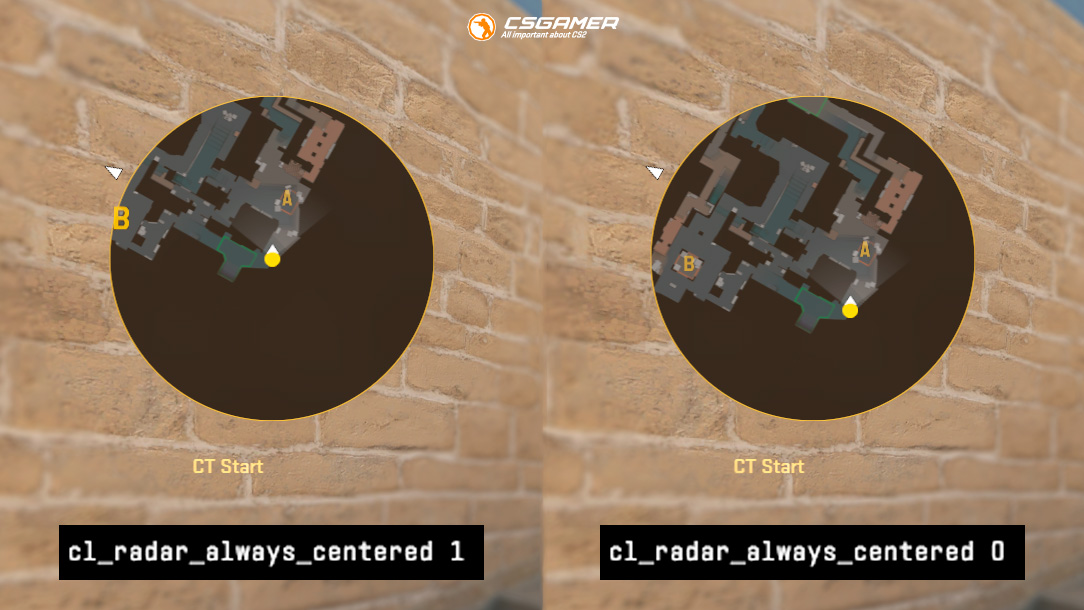
By default, your character is always displayed at the center of the CS2 radar. This is inefficient near map edges, as large radar areas become unusable.
cl_radar_always_centered 0– Disables radar centering on your position.cl_radar_always_centered 1– Enables default mode. Your position remains fixed at the center.

How to Disable Radar Rotation in CS2
By default, the CS2 radar rotates with your view direction, while the white arrow always points north. You can lock the radar’s position to keep north fixed at the top.
cl_radar_rotate 0– Locks the radar in a fixed position.cl_radar_rotate 1– Restores default mode (rotates with your view).
How to Change Icon Size on the CS2 Radar
Counter-Strike 2 (CS2) allows adjusting radar icon size (players, bomb, objects). The range is 0.4 to 1.3.
cl_radar_icon_scale_min 1.3– Increases icon size to maximum.cl_radar_icon_scale_min 1– Default icon size.cl_radar_icon_scale_min 0.4– Decreases icon size to minimum.

How to Change CS2 Radar Background Transparency
The CS2 radar has a darkened background adjustable from fully transparent (0.00) to deep black (1.00).
cl_hud_radar_background_alpha 0– Maximum transparency.cl_hud_radar_background_alpha 0.62– Default value.cl_hud_radar_background_alpha 1– Deep black background.

How to Disable CS2 Radar Background Blur
Beyond transparency, CS2 allows configuring radar background blur. For maximum clarity, minimize background darkness (0.00) and disable blur.
cl_hud_radar_blur_background 0– Disables blur effect.cl_hud_radar_blur_background 1– Default blur.

How to Overlay the Map on the CS2 Radar
Disabling radar blur activates radar map blending. The map displays in dark tones without a background, or light tones with a dark background. Adjust to preference:
cl_hud_radar_map_additive 1– Overlays a light version of the map.cl_hud_radar_map_additive 0– Disables light overlay (dark map).

How to Make a Square Radar in CS2
Counter-Strike 2 (CS2) recently added a square radar option. It occupies more screen space but shows a larger map area.
cl_radar_square_always 1– Radar is always square.cl_radar_square_always 0– Radar is always round.cl_radar_square_with_scoreboard 1– Radar becomes square only when opening the scoreboard (TAB).cl_radar_square_with_scoreboard 0– Radar stays round when opening the scoreboard (TAB).

How to Configure Radar in CS2 via Game Settings
All key radar settings available through console commands can also be adjusted in the standard game menu, ideal for players avoiding the console.
Step-by-Step Guide:
- Launch CS2.
- In the main menu, click the ⚙️ (gear icon) in the top-left corner.
- Navigate to the «Game» tab.
- Locate the «Radar» section.
Radar Setting Options:
The table below lists all menu items, their console equivalents (if applicable), and allowed values:
| Menu Item | Console Command | Values |
| Radar Centers The Player | cl_radar_always_centered | Yes/No (1/0) |
| Rotate Is Rotating | cl_radar_rotate | Yes/No (1/0) |
| Radar Hud Map Blend With Background | cl_hud_radar_map_additive | Yes/No (1/0) |
| Blur Background | cl_hud_radar_blur_background | Yes/No (1/0) |
| Radar Hud Background Opacity | cl_hud_radar_background_alpha | 0.00 – 1.00 |
| Radar Hud Size | cl_hud_radar_scale | 0.8 – 1.3 |
| Radar Hud Zoom | cl_radar_scale | 0.25 – 1.00 |
| Radar Map Alternate Zoom | (menu only) | 0.25 – 1.00 |
| Toggle Square Shape With Scoreboard | cl_radar_square_with_scoreboard | Yes/No (1/0) |
| Force Square Shape | cl_radar_square_always | Yes/No (1/0) |
| Radar Is Zooming Dynamically | (menu only) | Yes/No |
Why is the console sometimes better? Though the menu is convenient, console commands provide instant preview without closing menus, saving time for fine-tuning.
Which CS2 Radar Configuration Method to Choose?
- Menu only: “Radar Map Alternate Zoom”, “Radar Is Zooming Dynamically”.
- Console only: Radar icon size in CS2.
Disabling Bomb Icon Display (CS:GO Legacy)
The console command cl_hud_bomb_under_radar 0 to disable the bomb icon does not work in CS2.
Conclusion
The CS2 radar is a powerful tactical tool often underutilized due to suboptimal default settings. As demonstrated, it can and must be customized. Adjusting map zoom, disabling rotation/centering, configuring window/icon sizes, transparency, and shape (square radar) directly impacts battlefield awareness and decision-making speed.
Don’t settle for out-of-the-box settings. Use this guide–via the in-game menu or precise console commands (especially for icon size, exclusive to console)–to fully personalize your radar. Invest time in fine-tuning it, and you’ll immediately notice improved situational control, team coordination, and ultimately–more victories. An optimized radar is your key to higher-level play in Counter-Strike 2.

We have prepared a large list of websites where you can get bonuses such as free cases, skins, or promo codes when topping up.

We compared the price of one skin on various trading platforms to help you choose the most suitable one.

We analyzed case opening sites and compiled a ranking, evaluating them from best to worst based on the quality and profitability of skin drops.