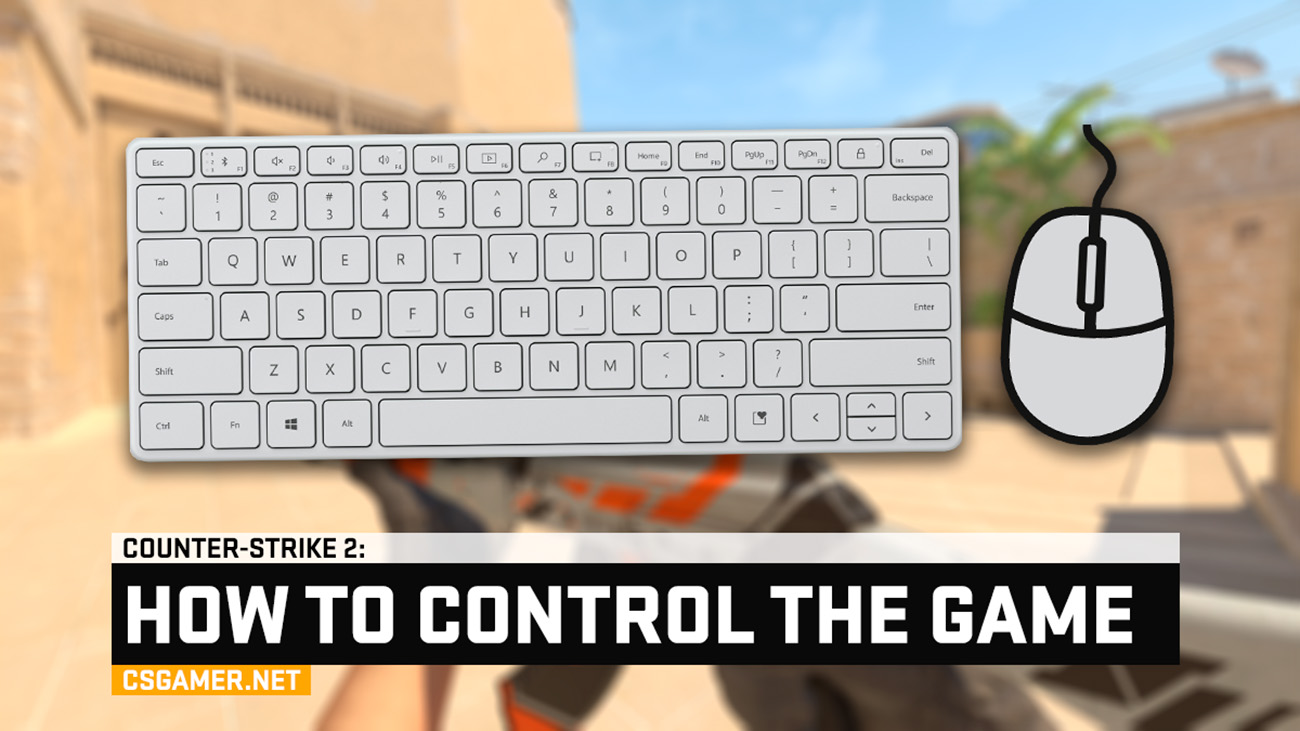
In Counter-Strike 2 (CS2), the default key bindings are used for all main actions – this allows players to jump straight into the game without spending time on remapping. Many prefer not to change them, as it provides convenience and versatility: you can sit down at any computer, quickly set up the standard config, and start playing without unnecessary complications. In this guide, we will break down in detail which keys are responsible for what in Counter-Strike 2 (CS2), so you can navigate the controls confidently.
How to walk in Counter-Strike 2 (CS2)
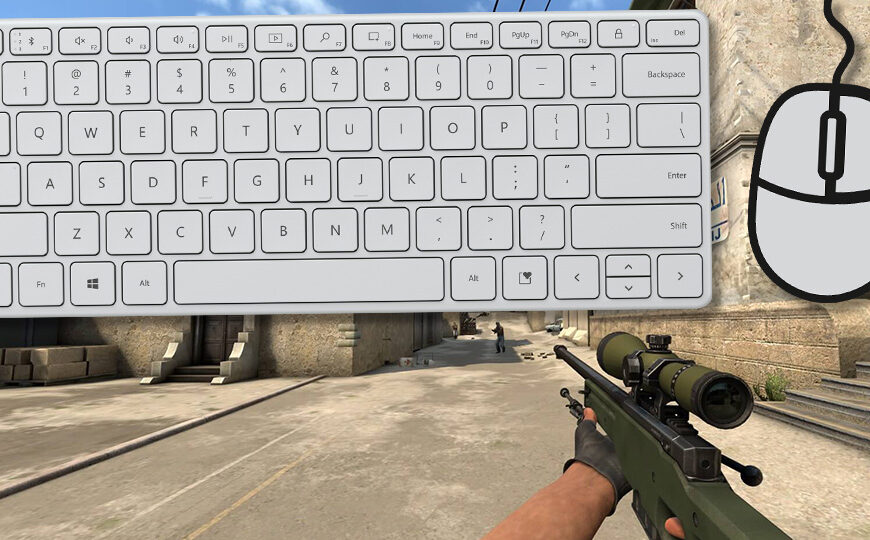
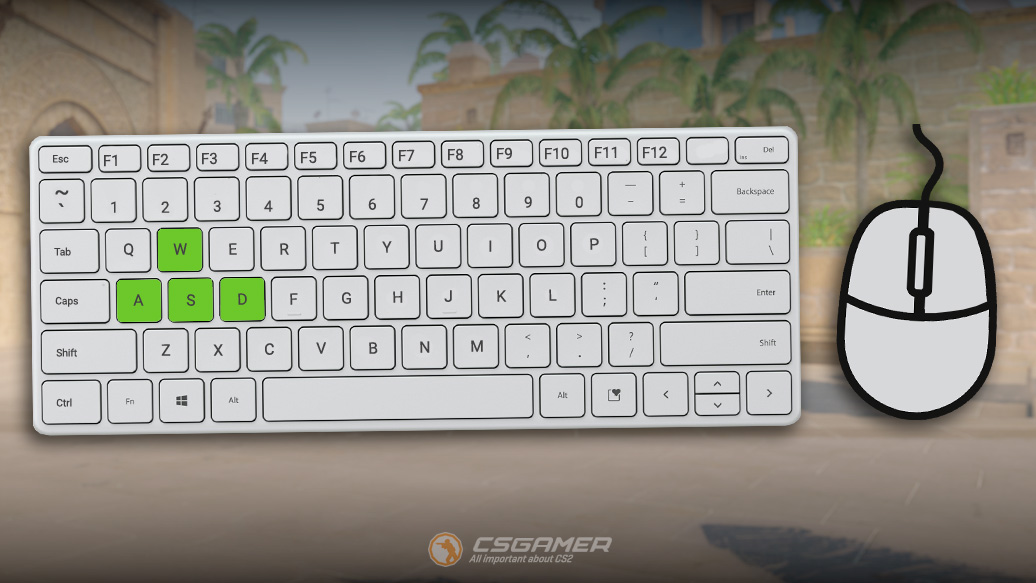
The ability to move quickly and accurately is a key skill in Counter-Strike 2 (CS2). By default, the game uses the classic WASD scheme, familiar to most players:
- W – move forward;
- A – move left;
- S – move backward;
- D – move right.
How to walk slowly in Counter-Strike 2 (CS2)
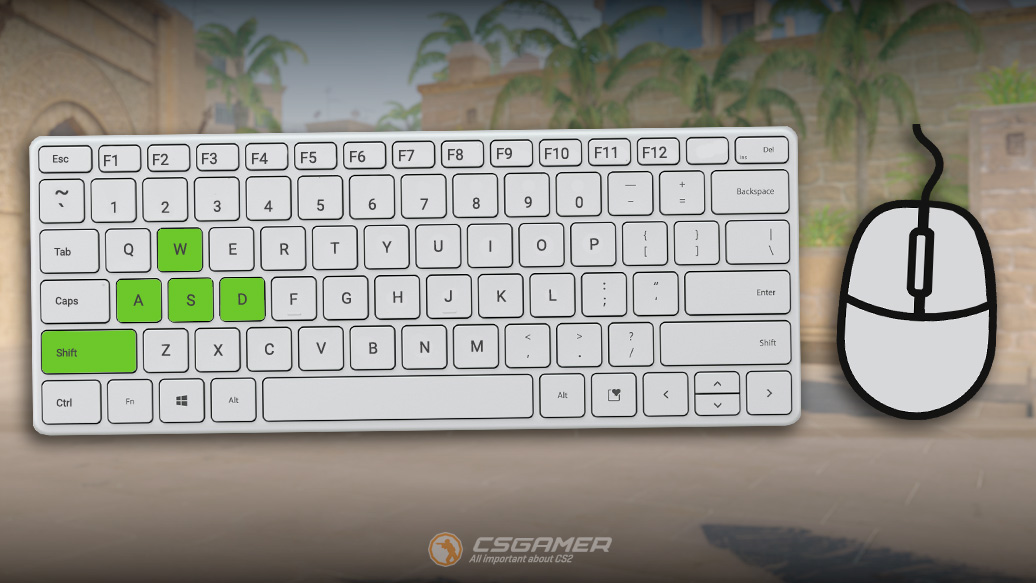
During normal walking, your character makes noise, noticeable to both teammates and enemies. For more stealthy movement, you can use slow walking by holding the Shift key along with the movement keys:
- W + Shift – slow walk forward;
- A + Shift – slow walk left;
- S + Shift – slow walk backward;
- D + Shift – slow walk right.
This method of movement slows you down but makes you less noticeable to enemies.
How to crouch in Counter-Strike 2 (CS2)
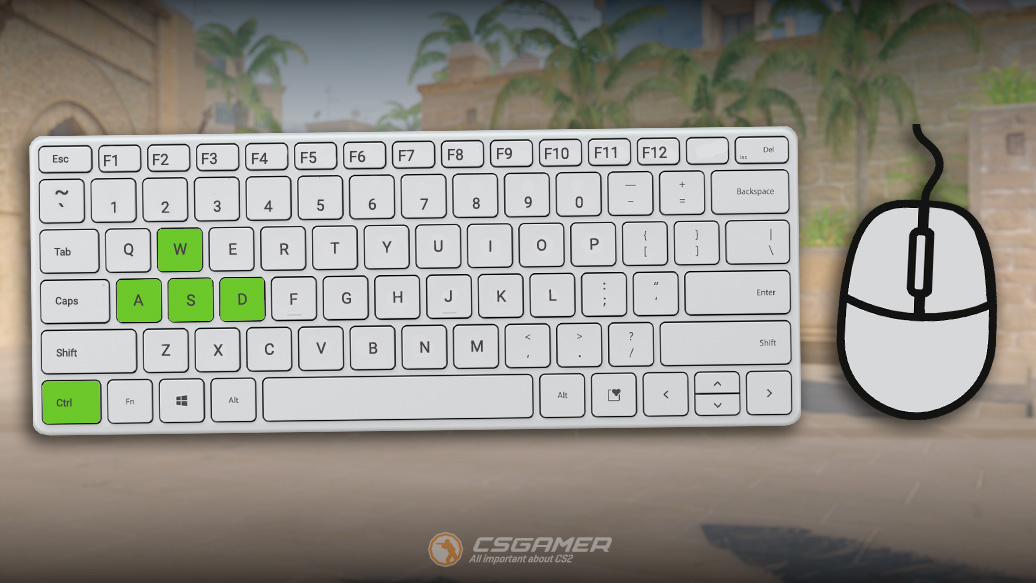
Sometimes it’s important not only to move silently but also to remain unseen. For this, the game has crouching Ctrl – it allows you to hide from view but slows down movement:
- W + Ctrl – crouch and move forward;
- A + Ctrl – crouch and move left;
- S + Ctrl – crouch and move backward;
- D + Ctrl – crouch and move right.
Crouching not only helps you hide but also reduces recoil when firing.
How to jump in Counter-Strike 2 (CS2)
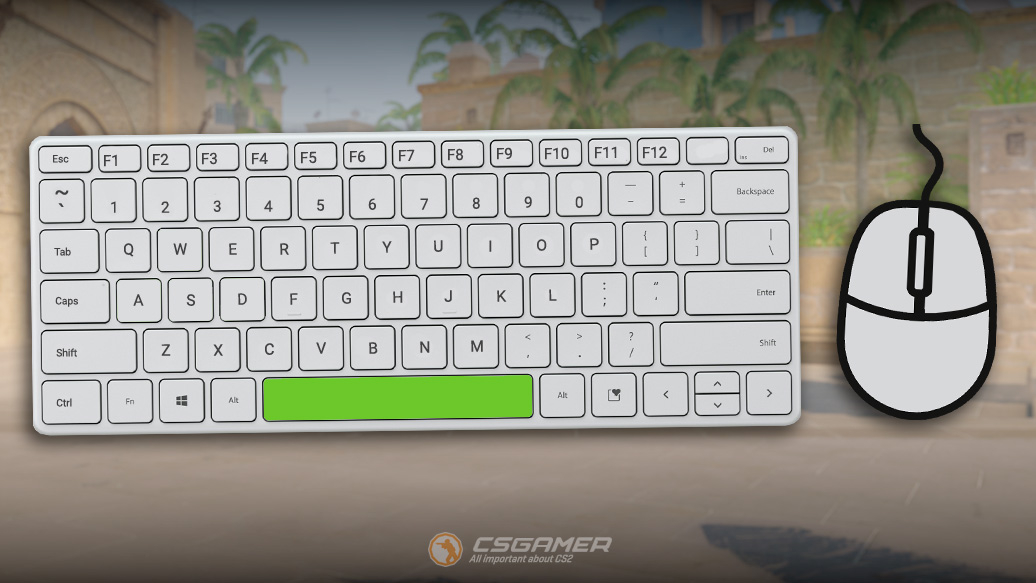
For jumping in Counter-Strike 2 (CS2), the largest key on the keyboard is used – Space (Space). Jumps open up many tactical possibilities: overcoming obstacles, taking advantageous positions, and dodging attacks. You can jump not only in place but also while moving:
- W + Space – jump forward;
- A + Space – jump left;
- S + Space – jump backward;
- D + Space – jump right.
Experienced players often rebind jump to the mouse wheel, as it is especially convenient for performing bunny hops (consecutive jumps while moving).
How to shoot in Counter-Strike 2 (CS2)
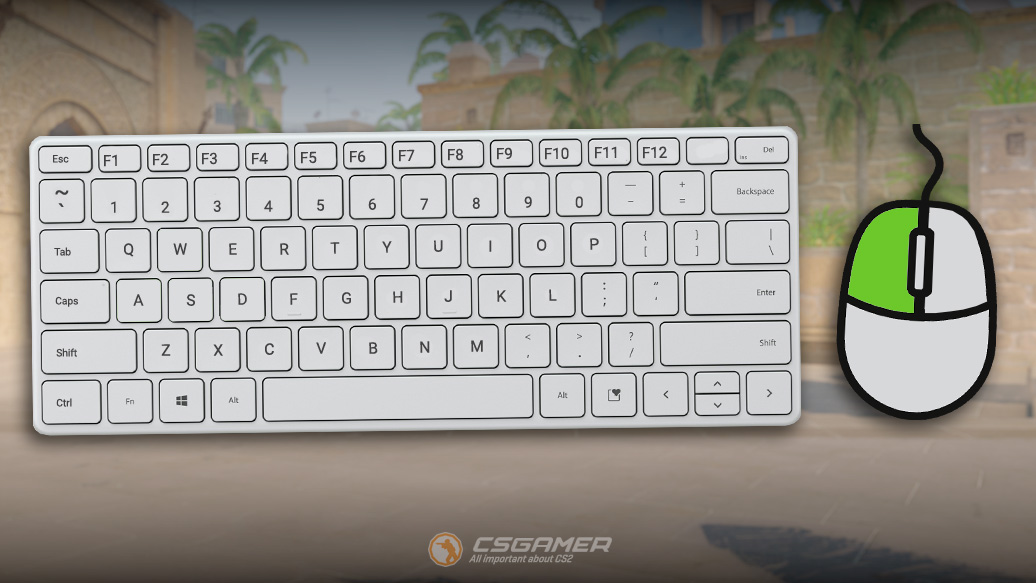
Aiming and shooting in Counter-Strike 2 (CS2) is done using a computer mouse. Pressing the left mouse button LMB fires a shot.
- Brief press LMB – single shot.
- Holding down LMB – automatic fire.
How to aim down sights in Counter-Strike 2 (CS2)
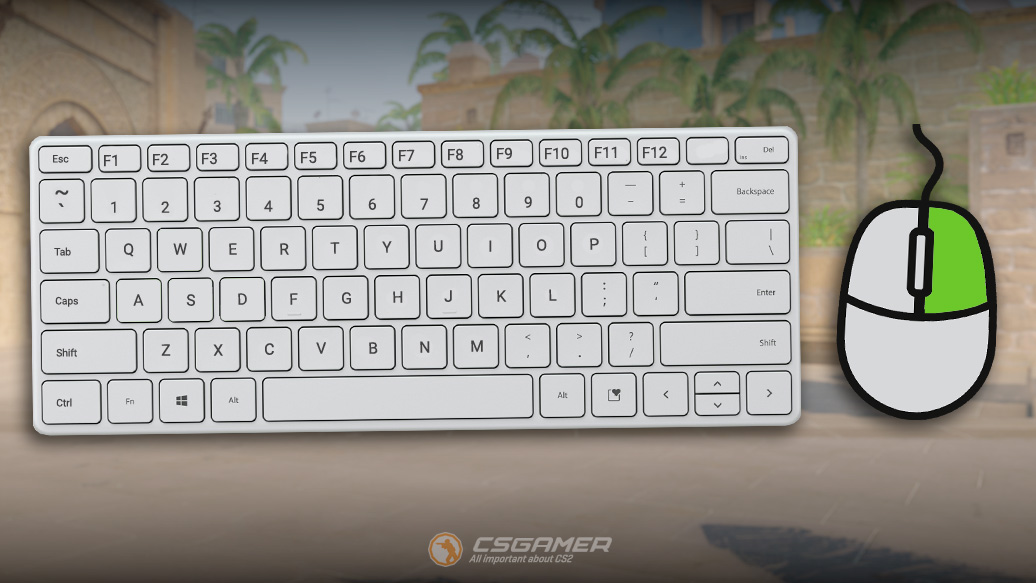
Unlike classic weapons, some rifles in Counter-Strike 2 (CS2) are equipped with a scope (zoom). Activating the zoom mode is done by pressing the right mouse button RMB.
- First press RMB – enable scope with 2x zoom.
- Second press RMB – switch to 4x zoom.
- Third press RMB – exit scope mode.
Please note: for the AUG and SG 553 assault rifles, the zoom works in a simplified mode and has only one level (2x). A second press of RMB immediately turns off the scope.
List of weapons that support a scope:
- Sniper Rifles:
- AWP
- SSG 08 (Scout)
- Semi-automatic Sniper Rifles:
- SCAR-20
- G3SG1
- Assault Rifles (with zoom capability):
- AUG (2x zoom only)
- SG 553 (2x zoom only)
How to pick up weapons in Counter-Strike 2 (CS2)
In Counter-Strike 2 (CS2), there are two ways to pick up a weapon:
- Automatic: If a slot is empty (no primary/pistol/grenades/defuse kit/C4), the item will be picked up automatically when you walk over it.
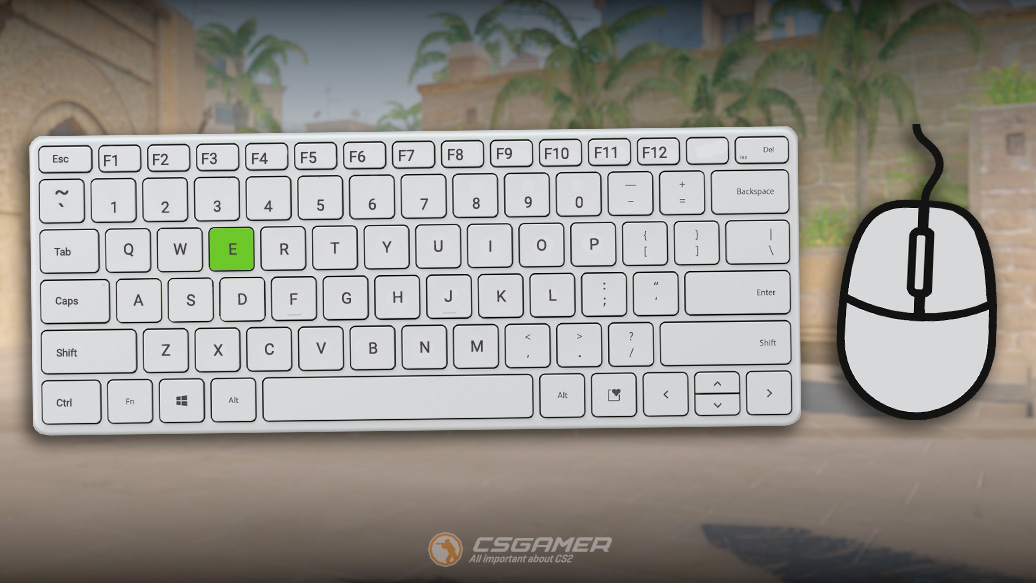
- Manual replacement: If a slot is occupied, aim at the weapon and press E to swap.
- C4 (bomb): It is always picked up automatically, regardless of slot occupancy.
How to drop weapons in Counter-Strike 2 (CS2)
Any weapon in Counter-Strike 2 (CS2), except the knife and defuse kits, can be dropped a few meters away from you as follows:
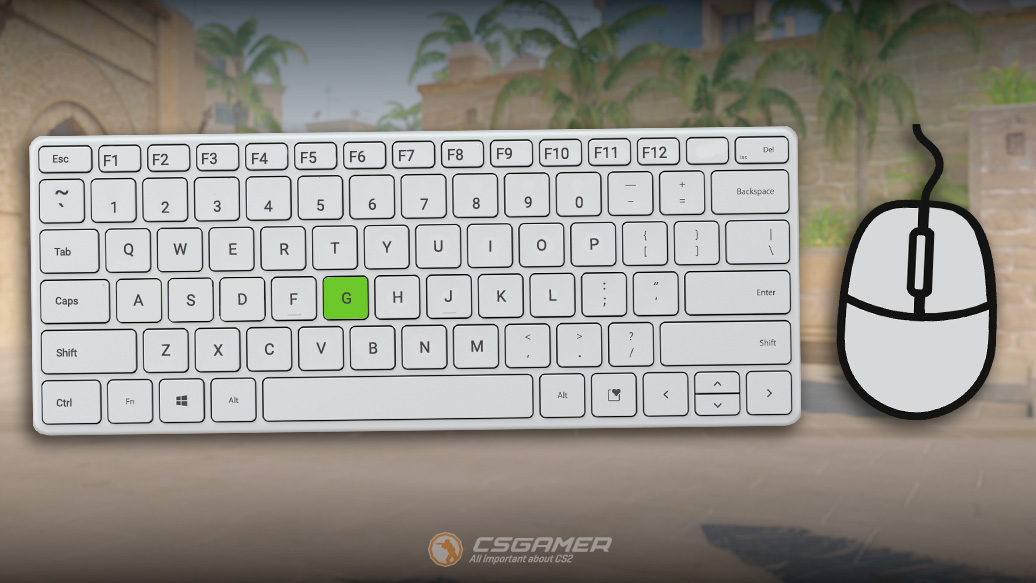
- Key G – drops the weapon you currently have in your hands.
Interesting fact: The knife in Counter-Strike 2 (CS2) can also be dropped using console commands and replaced with any other, for example, a Karambit.
How to reload weapons in Counter-Strike 2 (CS2)
In Counter-Strike 2 (CS2), there are two ways to reload a weapon:
- Automatically – when the magazine is empty (0 bullets).
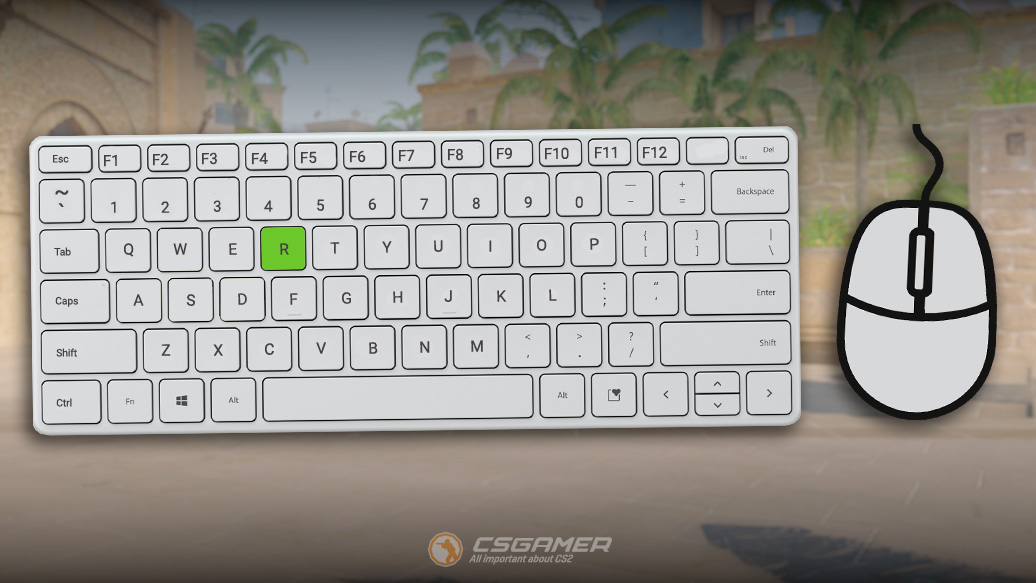
- Manually – press the R key (if there are bullets in reserve).
- Do not reload under fire – it’s better to quickly switch to your pistol.
- The reload sound is audible to those nearby, including enemies.
- You can cancel a reload by switching weapons or by firing with RMB.
Grenades, the knife, the C4 bomb, and defuse kits do not require reloading.
How to switch weapons in Counter-Strike 2 (CS2)
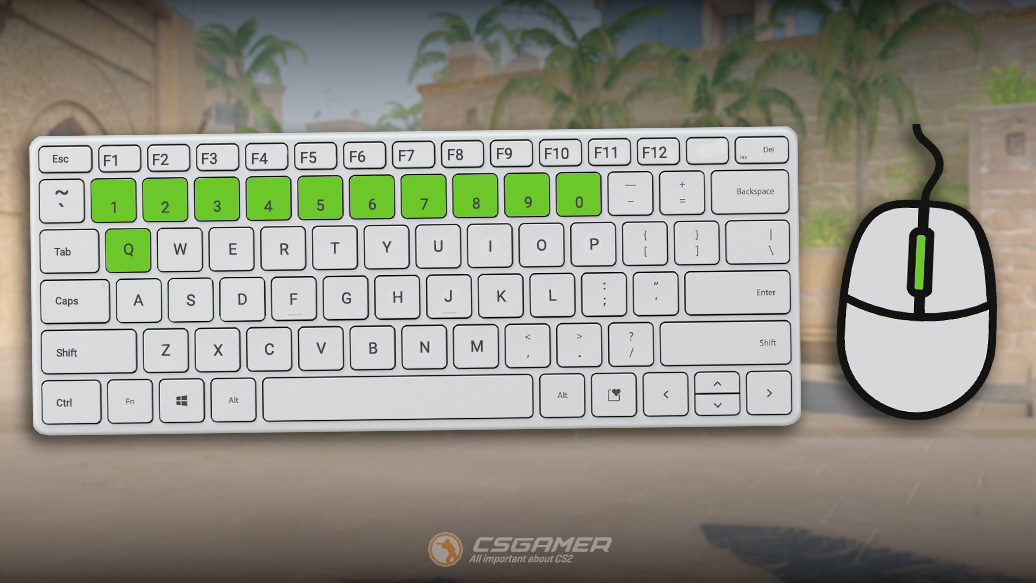
Switching weapons in Counter-Strike 2 (CS2) is possible in three ways:
- Scrolling the mouse wheel up or down.
- Pressing the corresponding number on the keyboard:
- 1 – primary weapon
- 2 – pistol;
- 3 – knife or Zeus x27;
- 4–9 – grenades and bombs.
- Pressing Q to quickly switch to the last used weapon.
How to inspect weapons in Counter-Strike 2 (CS2)
In Counter-Strike 2 (CS2), weapon skins – unique patterns on weapons – are extremely popular. To examine your own or even someone else’s skin in detail, the game has an inspect mode.
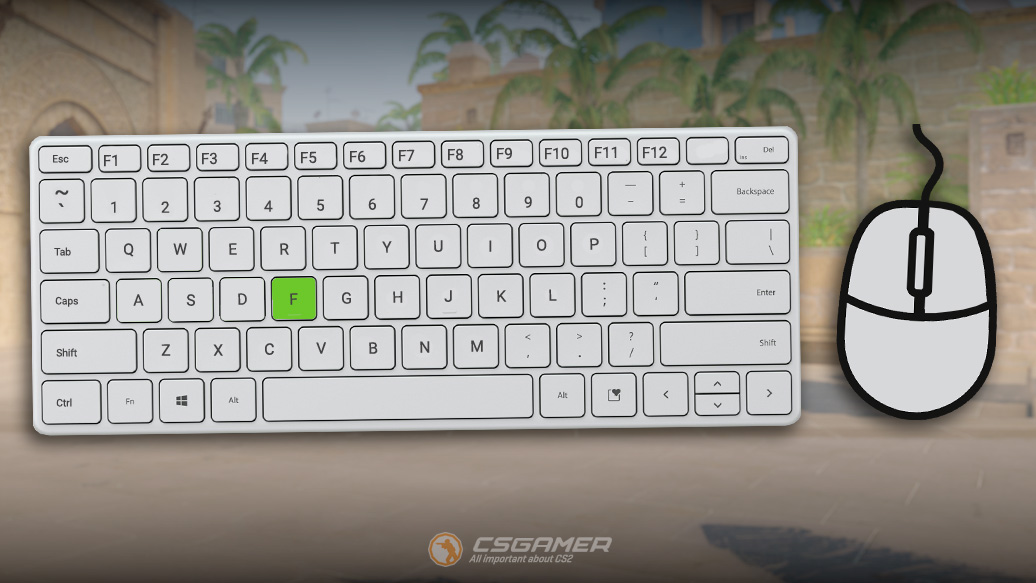
- Key F – your character will twirl it, allowing you to view the skin from all angles.
Weapon inspection can be interrupted by shooting, reloading, or switching to another weapon.
How to buy weapons in Counter-Strike 2 (CS2)
In Counter-Strike 2 (CS2), you need to purchase equipment at the beginning of the round. Purchasing weapons is allowed only in the spawn zone and only within the first 20 seconds of the round.
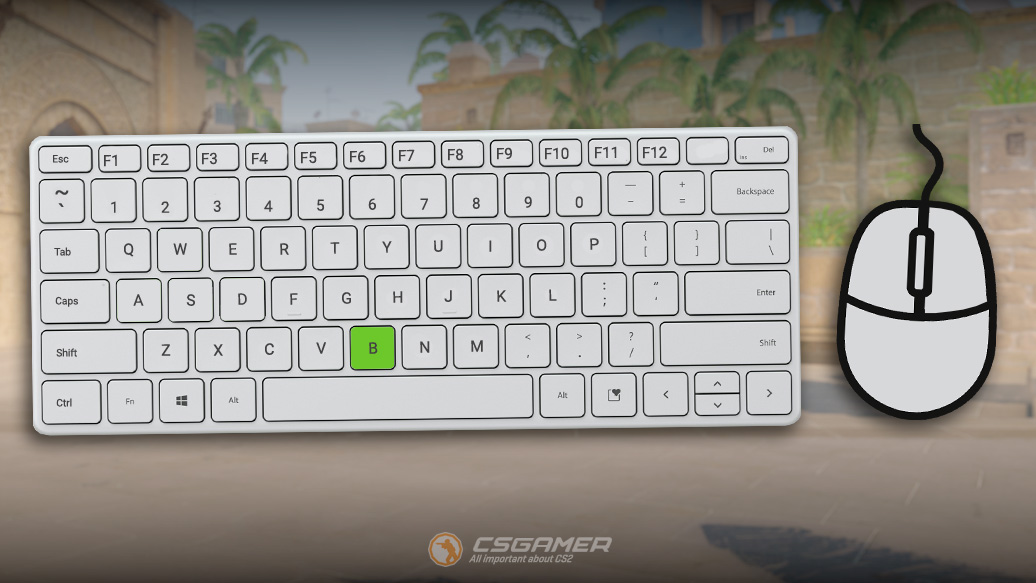
- Key B – opens the buy menu for all equipment.
You can only purchase equipment for which you have sufficient funds at the start of the round. The C4 bomb is not bought; it is given to one random player at the beginning of the round.
How to enable auto-buy in Counter-Strike 2 (CS2)
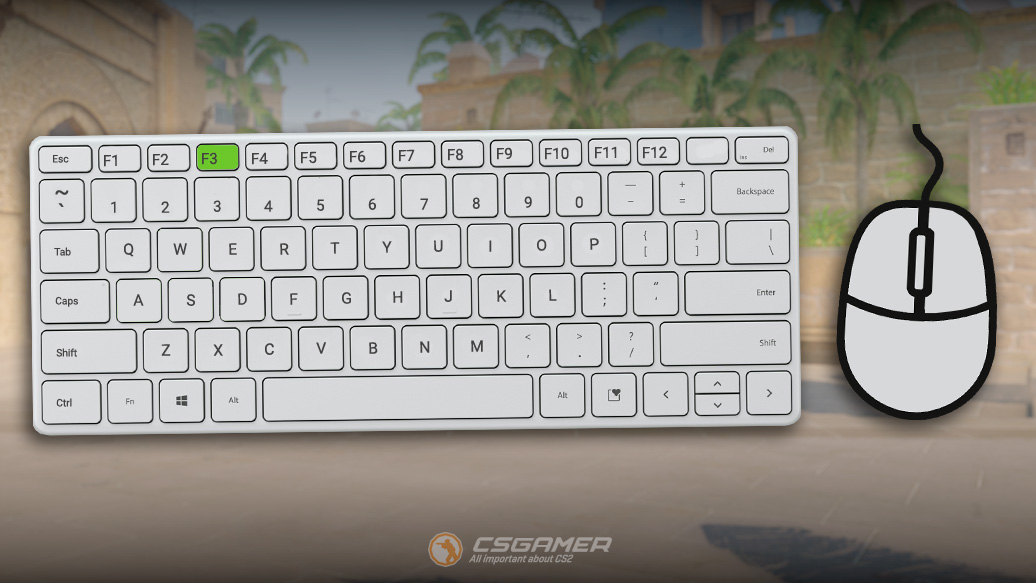
In Counter-Strike 2 (CS2), there is an auto-buy feature for equipment. The game automatically buys an optimal set of equipment, depending on the funds available at the start of the round.
- Key F3 – automatically buys optimal equipment.
How to rebuy previous equipment in Counter-Strike 2 (CS2)
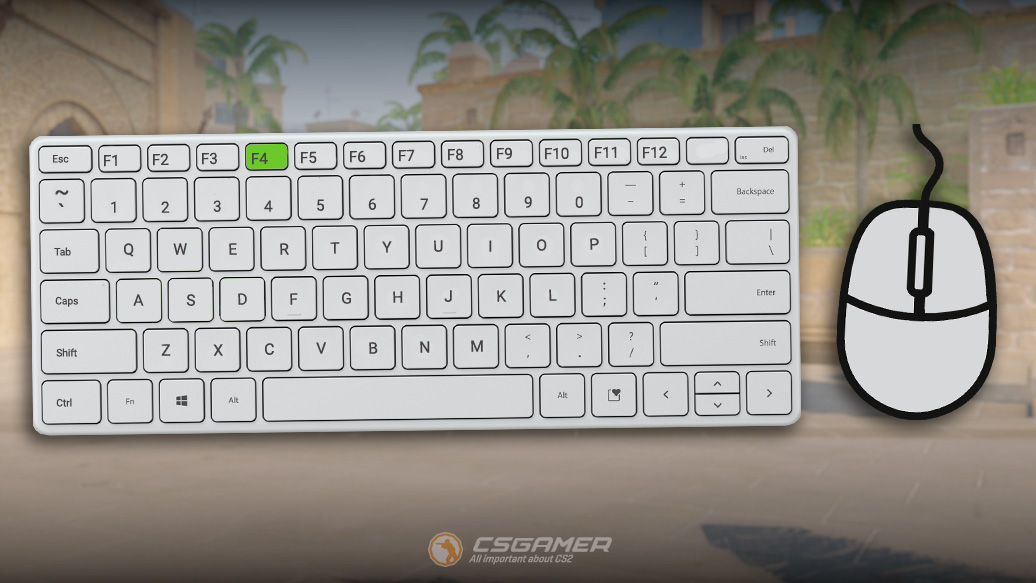
Also in Counter-Strike 2 (CS2), you can quickly purchase your entire previous loadout with a single key press.
- Key F4 – repeats the last equipment purchase (rebuy).
However, if you don’t have enough funds for the full previous loadout, only the primary weapon will be purchased.
How to plant the bomb in Counter-Strike 2 (CS2)
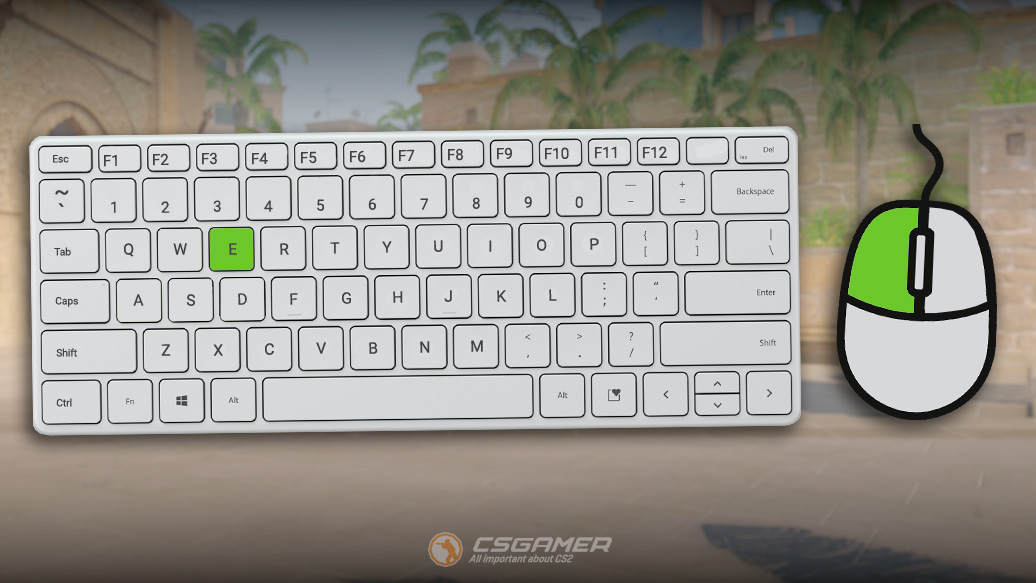
How to plant the bomb when playing as the Terrorist side:
- Approach one of the bomb sites (A or B).
- Take out the bomb by pressing the 5 key.
- Plant the bomb using:
- The E key
- The left mouse button LMB.
How to defuse the bomb in Counter-Strike 2 (CS2)
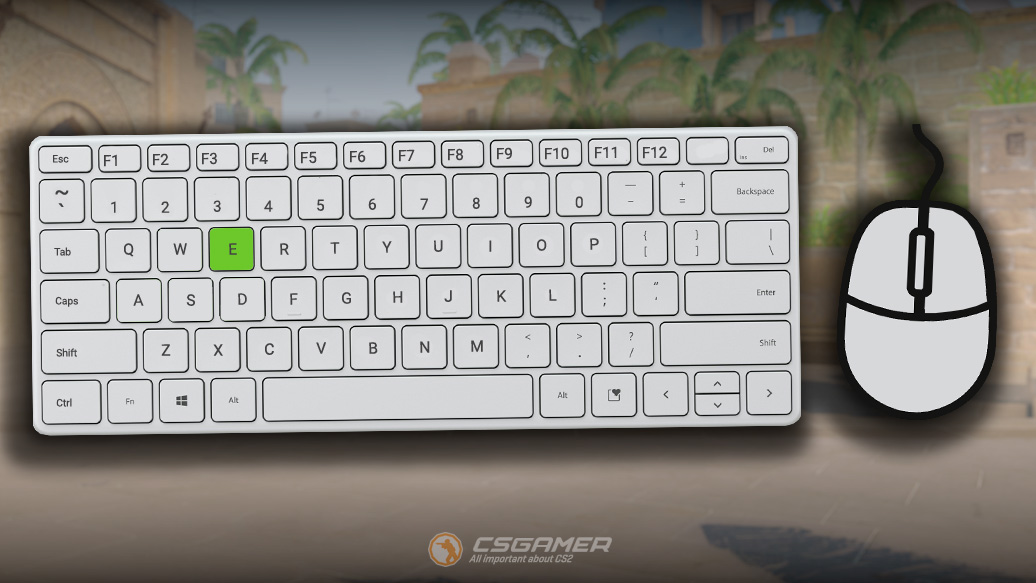
To defuse the bomb when playing as the Counter-Terrorist side:
- Approach the bomb site.
- Aim towards the planted bomb.
- Hold down the E key until defusal is complete:
- With a defuse kit: 5 seconds.
- Without a kit: 10 seconds.
How to rescue a hostage in Counter-Strike 2 (CS2)
The hostage rescue mechanic is similar to defusing the bomb:
- Approach the hostage.
- Aim towards the hostage.
- Hold E until rescue is complete:
- With a rescue kit: 1 second.
- Without a kit: 3 seconds.
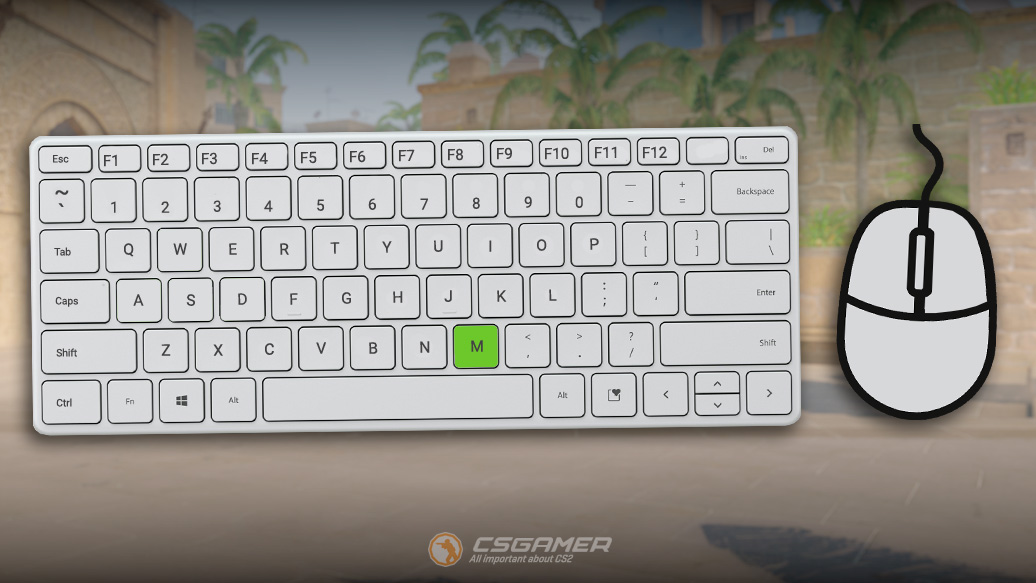
How to switch teams in Counter-Strike 2 (CS2)
In all game modes of Counter-Strike 2 (CS2) except Competitive, Premier, and Wingman, you can change the side you want to play for.
- Key M – opens the team selection menu for Terrorists or Counter-Terrorists.
If a team has already reached the maximum player limit, you cannot join it during this round. Wait for the next round or choose another match.
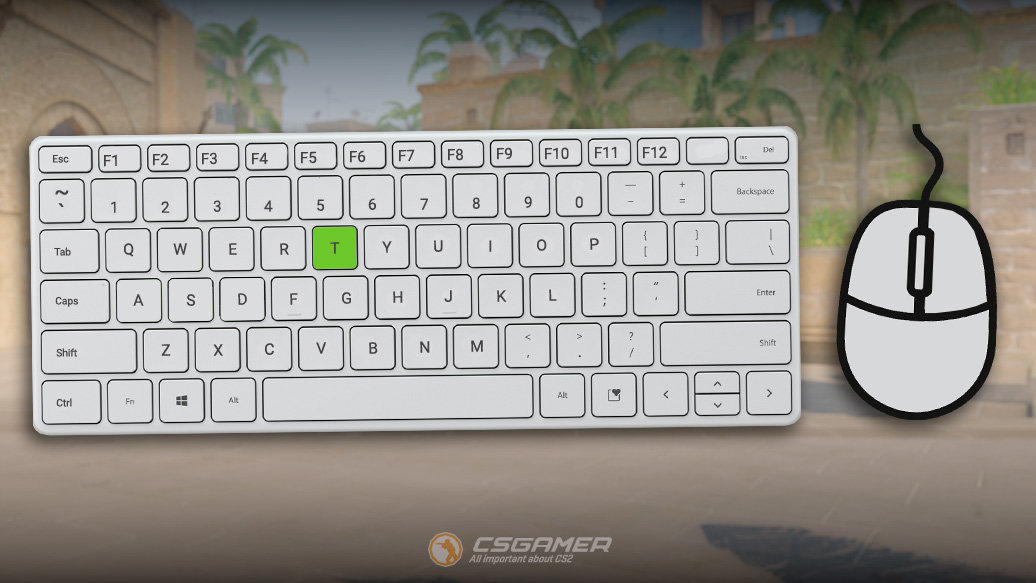
How to spray graffiti in Counter-Strike 2 (CS2)
To spray graffiti on any surface in Counter-Strike 2 (CS2), hold down the T key to open the graffiti menu. Select the desired design, approach and aim at the surface, then release the T key to apply it.
- Holding the T key – opens the graffiti selection menu. Releasing the T key applies the graffiti or closes the menu.
In the game settings, you can disable quick application. To do this, uncheck the corresponding box in the graffiti settings. In this mode, after selecting a design, an additional press of the left mouse button LMB is required to apply it.
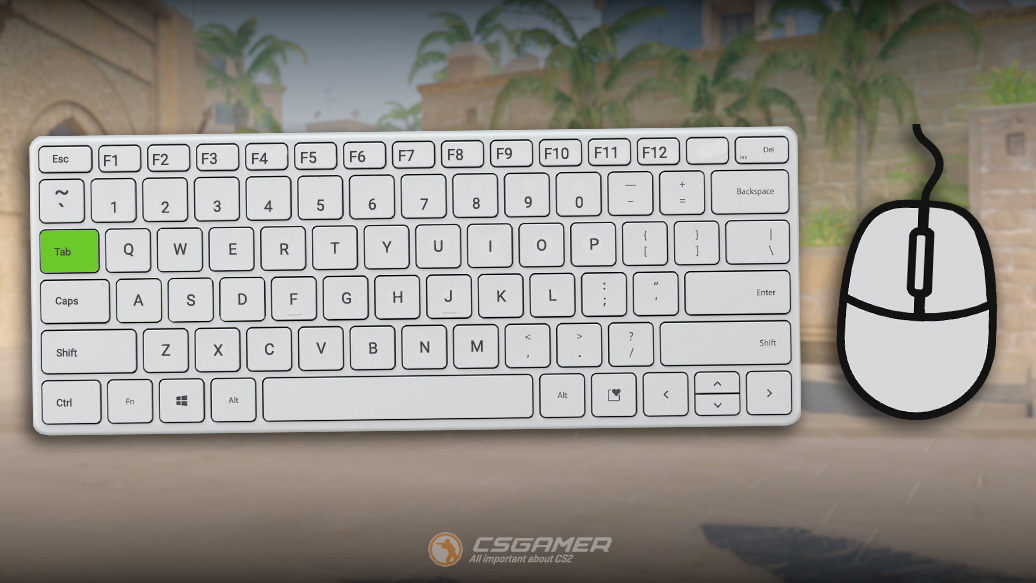
How to open the scoreboard in Counter-Strike 2 (CS2)
You can view the statistics of the current match in Counter-Strike 2 (CS2) (number of kills, assists, points, damage dealt, and other indicators) by pressing the TAB key.
- Key TAB – player statistics in the match at the current moment.
Find out the complete statistics of your profile in Counter-Strike 2 (CS2) for all time using the app on our website.
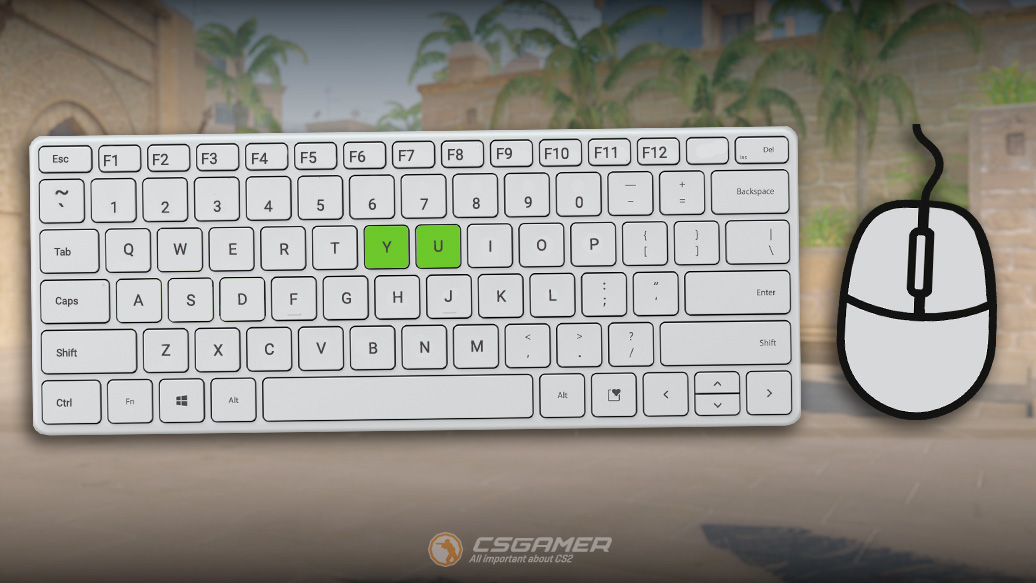
How to open all chat or team chat in Counter-Strike 2 (CS2)
In Counter-Strike 2 (CS2), there are three types of chat you can use to communicate with other players:
- All Chat Y – text chat where messages are visible to all players on the server.
- Team Chat U – text chat where messages are visible only to players on your team.
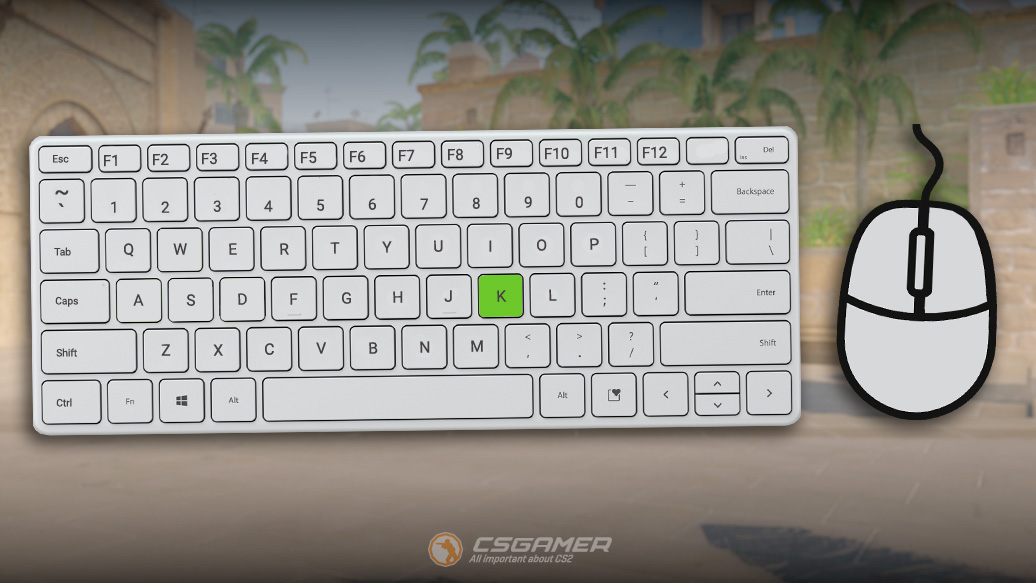
- Voice Chat K.
To send a ready message, press Enter. If the message field is empty, pressing Enter will close the chat.
How to use the microphone in Counter-Strike 2 (CS2)
The third type of chat in Counter-Strike 2 (CS2) is voice chat, which transmits sound through the microphone, and your voice is heard only by players on your team.
- Holding the K key – transmits your voice to the voice chat. Releasing the K key stops transmitting your voice.
How to ping in Counter-Strike 2 (CS2)
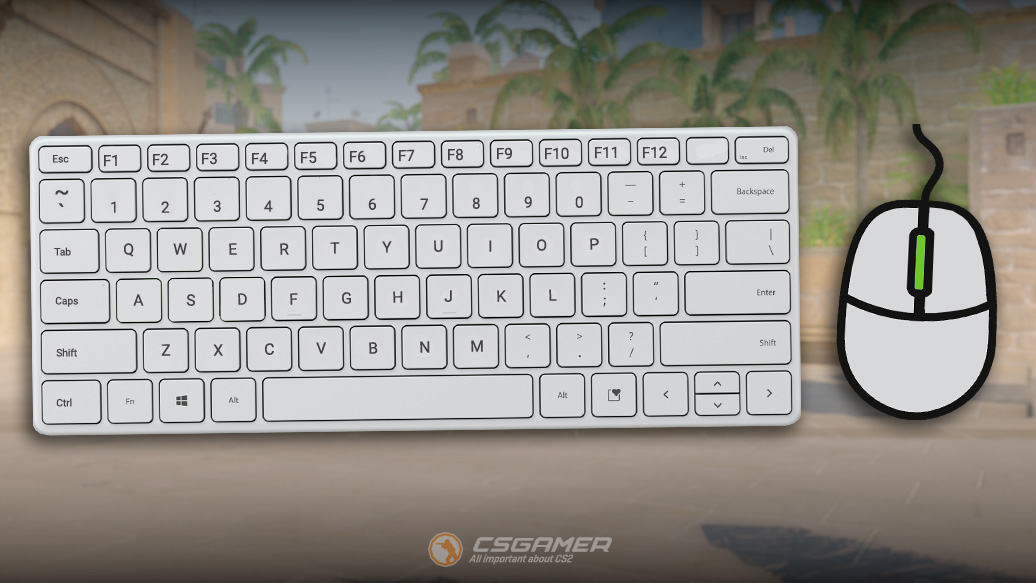
In Counter-Strike 2 (CS2), a new feature for placing pings has been added. Use pings to indicate enemy locations to your teammates.
- Key MOUSE3 (mouse wheel) – places a ping on the map that is visible only to teammates.
Please note: In spectator mode, the ping function is not available.
How to open the chat wheel in Counter-Strike 2 (CS2)
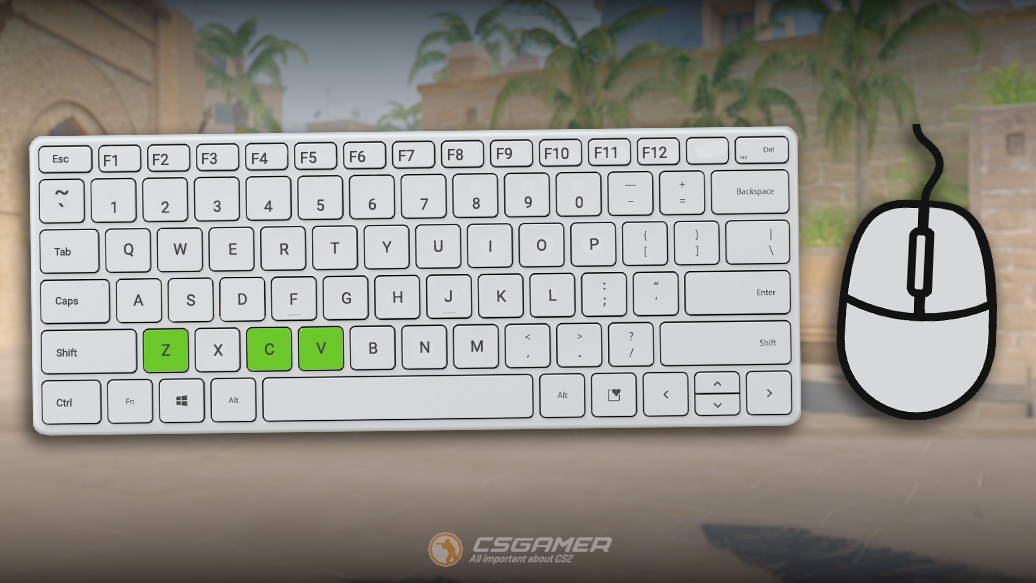
The chat wheel in Counter-Strike 2 (CS2) allows you to quickly send preset messages to your team. When you select a phrase, your character says it in English. You can customize the messages in each wheel through the game settings.
- Key Z – opens the radio message menu, where you can select the following messages:
- Key 1: Affirmative/Roger that
- Key 2: Negative
- Key 3: Nice!
- Key 4: Hold this position
- Key 5: Follow me
- Key 6: Thanks
- Key 0: Exit
- Key C – opens chat wheel #1. It contains the following messages:
- Need to buy
- Need to save
- Requesting weapon
- Ping at bombsite A
- Ping at bombsite B
- Ping at MID
- Follow me
- Following you
- Key V – opens chat wheel #2. It contains the following messages:
- Enemy spotted
- Sniper spotted
- Bomb spotted
- Ping at bombsite A
- Ping at bombsite B
- I’m in position
- Multiple enemies here
- Need backup
- Key not set by default – opens chat wheel #3. It contains the following messages:
- Yes
- No
- Thanks
- Sorry
- Perfect!
- All clear
- Good luck
- Cheer up
We recommend binding chat wheel #3 to the X key, as it is not used in Counter-Strike 2 (CS2).
Conclusion
By mastering the default controls in Counter-Strike 2 (CS2), you take the first and most important step towards confident gameplay. These basic keys will become your foundation, upon which tactical maneuvers, quick reactions, and team coordination will later be built. Don’t be afraid to experiment with customizing the settings to your liking, but remember: knowing the classic layout will be useful in any game situation. Practice, and soon the necessary actions will become second nature!

We have prepared a large list of websites where you can get bonuses such as free cases, skins, or promo codes when topping up.

We compared the price of one skin on various trading platforms to help you choose the most suitable one.

We analyzed case opening sites and compiled a ranking, evaluating them from best to worst based on the quality and profitability of skin drops.